CAC Card Not Working on Mac — Why It Fails Differently Than Windows
CAC authentication on Mac has gotten complicated with all the conflicting advice flying around.
Windows users rarely hit this wall. macOS treats certificate trust as its own separate concern, browsers handle CAC prompts however they feel like it, and the middleware ecosystem is noticeably thinner. Most troubleshooting guides assume you’re on Windows. They won’t help you here.
Three things kill CAC on Mac more than anything else. Keychain Access isn’t trusting the DoD root certificates. The middleware is missing or outdated. Or your browser has no idea where your certificates live. Sometimes it’s the USB reader itself — or a cable that shouldn’t cost forty dollars but somehow does. Let’s fix this methodically.
Step 1 — Check Your CAC Reader and USB Connection
Start physical. I know it sounds obvious. I once spent two hours chasing middleware ghosts when my USB-C adapter was just sitting loose in the port. That was a bad afternoon.
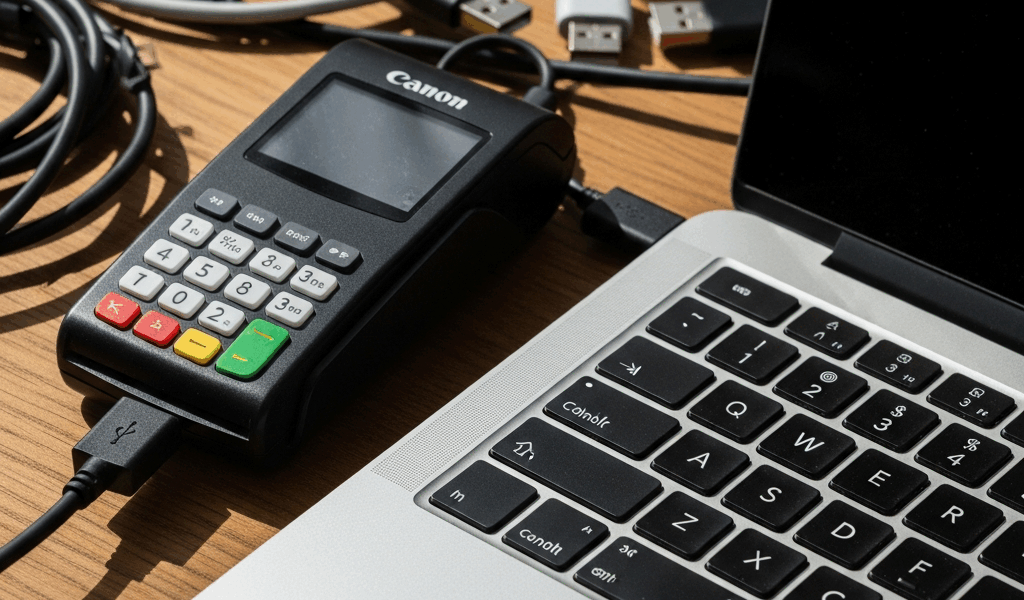
Plug in your CAC reader. On newer Macs you’ll need a USB-C adapter if your reader is USB-A — at least if your reader is the older style issued before 2020. Apple’s own adapters work fine. Third-party ones under twenty dollars often don’t. Spend the extra money if you haven’t already.
Open System Information. Hit the Apple menu in the top left, click “About This Mac,” then “System Report.” Find USB under Hardware. Your reader should show up in the device tree — something like “Identiv” or “Gemalto” or “HID Global” depending on your model. Nothing there means one of three things: the reader isn’t actually plugged in, the adapter is bad, or the reader is dead.
One more thing. If you’re on Apple Silicon — M1, M2, M3, whatever — pull up your reader’s spec sheet. Some older military CAC readers simply don’t talk to ARM architecture. The Identiv SCR3500 is notoriously bad on Silicon Macs. Newer readers generally work fine. If yours is the problem, request a replacement from your IT office before wasting another hour on software.
Step 2 — Install or Reinstall CAC Middleware on Mac
This is where most Mac users get completely lost. So let’s slow down here.
But what is CAC middleware? In essence, it’s the software layer that lets your Mac actually talk to the card. But it’s much more than that — it also manages how certificates get surfaced to your OS and browsers. Without it, your Mac sees a USB device and nothing else.
Two options exist: CAC Utility and OpenSC. CAC Utility is maintained through the DoD’s military community network and that’s where you should start. OpenSC is the open-source fallback for when CAC Utility won’t cooperate.
Go to militarycac.com. Download CAC Utility for macOS. Standard installer package, nothing exotic. Run it. When it finishes, here’s the step every generic guide glosses over: you have to manually trust the DoD root certificates inside Keychain Access.
Open Keychain Access — Applications, then Utilities. Click “Certificates” in the left column. CAC Utility should have dropped several DoD certificates in there. Look for anything labeled “DoD Root CA.” Double-click “DoD Root CA 3.” Expand the Trust section. Change “When using this certificate” from “Use System Defaults” to “Always Trust.” Repeat that for every single DoD root certificate sitting in your Keychain. This is the step that quietly breaks most Mac installations. The certificates are there. Your Mac just refuses to use them until you explicitly say so.
Probably should have opened with this section, honestly. It fixes most problems immediately.
If CAC Utility fails or you’re running an unsupported macOS version, grab OpenSC from opensc-project.org. Same Keychain trust process applies afterward.
Step 3 — Fix Browser Certificate Issues on Mac
Middleware is installed. Certificates are trusted. Now your browser needs to know where to find them. Safari and Chrome handle this differently. Firefox is its own separate universe.
Safari
Safari pulls from Keychain natively. If your DoD certificates are already trusted there, Safari should recognize your CAC the moment you land on a .mil site. If it doesn’t, clear your cache first — Safari menu, Settings, Privacy, Remove All Website Data. Reload. That clears whatever stale state it’s holding onto.
Chrome
Chrome on macOS doesn’t read Keychain the way Safari does. I’m apparently a Chrome-first person and Chrome works for me while Safari never quite handled the certificate prompts the way I needed. Go to Settings, Privacy and Security, Manage Certificates. Click the Authorities tab. Find your DoD root certificates. They need a green checkmark under Trusted. If they don’t have one, double-click each and set trust to Always Trust — Chrome wants its own separate confirmation independent of whatever Keychain says.
Then restart Chrome completely. All windows closed, reopen fresh. That clears Chrome’s internal certificate cache.
Firefox
Firefox runs its own certificate store entirely. Open Firefox menu, Settings, Privacy and Security, then Security. Scroll to Certificates. Click View Certificates. Find the Authorities tab and check for your DoD roots. They need explicit trust set here — Keychain doesn’t feed into Firefox at all. If they’re missing, import them manually. Firefox will actually prompt you when you visit a .mil site requiring CAC authentication. Accept the import prompt. Don’t dismiss it.
Still Not Working — Try These Mac-Specific Fixes
Still stuck? You’re in edge case territory now. These are the fixes that don’t make it into most guides.
Open Terminal. Type sc_auth identities and hit Enter. If your card is recognized, you’ll see certificate information in the output. Empty output means your reader isn’t communicating with the OS at all — go back to Step 1 and check every physical connection again. Don’t make my mistake of skipping this and assuming it’s software.
Check your macOS version. Ventura and Sonoma moved Smart Card settings — they’re now under System Settings, General, Login Items and Extensions. If your reader worked before a recent OS update and stopped, check there. Updates have a habit of silently disabling the smart card service. That was a fun one to discover at 7am before a meeting.
Reset your PRAM or SMC if the reader worked before and now drops intermittently. On Intel Macs, restart and hold Command plus Option plus P plus R until you hear the startup chime twice. On Apple Silicon, shut down completely, then press and hold the power button for roughly ten seconds until startup options appear. Click Options, then Restart. This clears low-level hardware settings that occasionally interfere with USB readers in ways that make no logical sense.
If none of that moves the needle, do a full middleware reinstall. Uninstall CAC Utility or OpenSC entirely, restart, then download and install the latest version clean. Version conflicts are more common than the documentation admits.
Your CAC card should work now. If it genuinely doesn’t after all of this, contact your DoD IT support office directly. At that point you’re likely looking at a hardware failure or an agency-specific network configuration that no general guide can account for.


Leave a Reply