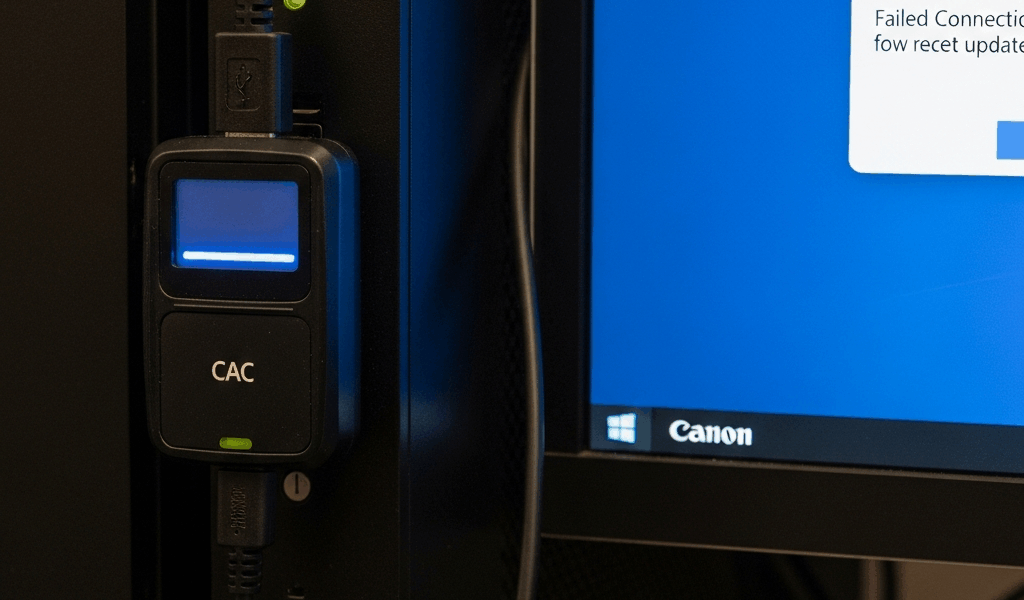
If a CAC or other smart card is not recognized after a Windows update, identify whether Windows lost the reader, cannot read the card, or can read the card but cannot present a client certificate. Do not start by removing middleware or forcing an unsigned driver. The update may be related, but the failed layer determines the fix.
Start with the exact symptom
| Symptom | Check next |
|---|---|
| Reader is absent from Device Manager | USB connection, hardware detection and driver state |
| Reader has a warning icon | The exact Device Manager error code |
| Reader appears normally but no card is detected | Smart Card service, card orientation and card-versus-reader test |
| “No client certificate presented” | Certificate enumeration, browser selection, DoD trust and the destination site |
1. Reconnect the reader without a hub
Remove the CAC, disconnect the reader, restart Windows, and connect the reader directly to a USB port on the computer. Then insert the card. If a different direct port works, the dock, hub, adapter or original port—not the update itself—was the failed component.
2. Check Device Manager
- Right-click Start and open Device Manager.
- Expand Smart card readers.
- If the category is absent, select Action → Scan for hardware changes.
- Open the reader’s properties and record the device status and error code.
Microsoft documents a specific registry remedy for a USB CCID reader reporting Code 31 on supported Windows clients. Do not apply that remedy to a different error code. If Windows sees no reader at all, test the device on another computer before changing software.
3. Check the Smart Card service
Windows uses the Smart Card service, internally called SCardSvr, to communicate with smart cards.
- Press Windows + R, enter
services.mscand select OK. - Locate Smart Card.
- Insert the CAC and check whether the service is running.
- On an authorized personal computer, start the service if it is stopped and test again.
Do not override organization-managed service settings. For the broader diagnostic sequence, use the complete CAC reader troubleshooting guide.
4. Verify certificate propagation and card enumeration
The Certificate Propagation service reads certificates from an inserted smart card and places them in the signed-in user’s personal store. Microsoft states that the service must run for smart-card Plug and Play.
On an authorized Windows computer, certutil -scinfo can show whether Windows sees the reader, card and certificates. If the reader and card appear but the expected certificate does not, the problem is no longer basic USB detection.
5. Repair the driver safely
Use Windows Update, including applicable optional driver updates, or the reader manufacturer’s official support page. Match the package to the exact model and supported Windows version.
- Do not use a third-party driver-download site.
- Do not bypass an unsigned-driver warning.
- If the problem began with a driver update and Roll Back Driver is available, use it before uninstalling the device.
- Record the working driver version so an IT administrator can compare it with affected systems.
6. Distinguish middleware from Windows support
Do not assume every Windows CAC setup requires ActivClient, and do not remove agency-provided middleware from a managed computer. First prove that Windows can enumerate the CAC. If Windows succeeds but an approved application does not, repair or update only the middleware required by your component or application.
For an ActivClient-specific failure, see CAC Card Reader Not Working With ActivClient.
7. Fix “no client certificate presented”
This message usually means the browser or server did not receive an acceptable client certificate. Check:
- Whether
certutil -scinfosees the CAC certificates. - Whether the browser offered multiple certificates and the correct authentication certificate was selected.
- Whether other CAC-enabled sites work.
- Whether the current DoD CA certificates are trusted using official DoD Cyber Exchange material.
- Whether the destination service has an outage or changed access requirements.
Do not weaken certificate validation or enable unrelated Group Policy settings merely to suppress the error.
8. Recheck after a Windows update
After completing one change, remove the CAC, close all browser windows, reconnect the reader and test again. Changing the driver, middleware, trust store and browser simultaneously makes it impossible to identify the successful fix.
When to stop and call support
Escalate when the affected computer is managed, multiple users fail after the same update, a required service is disabled by policy, a driver package is organization-controlled, or the CAC appears expired, revoked or unreadable on multiple working readers.



Leave a Reply