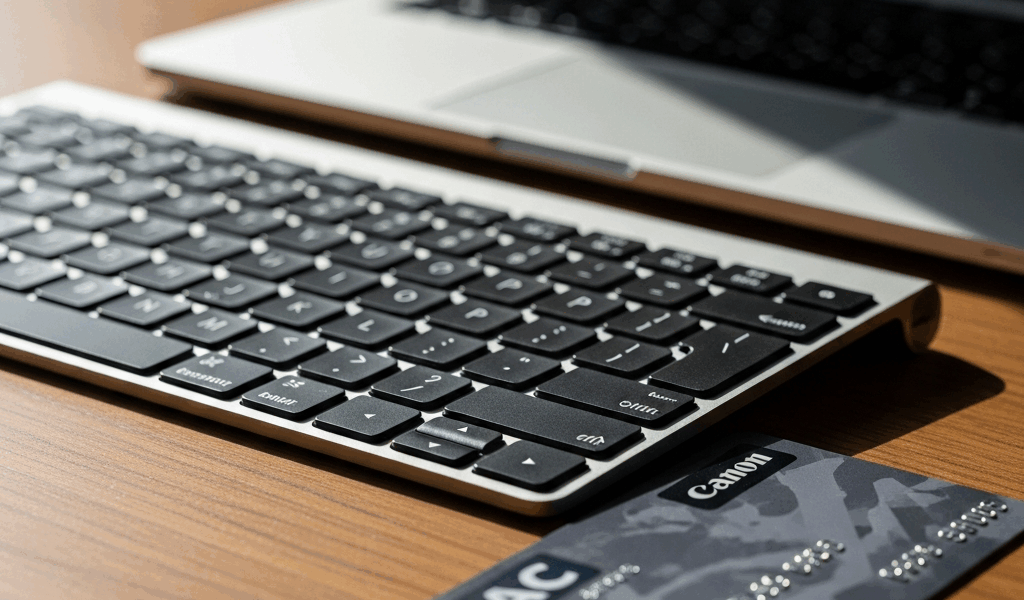
Why CAC Authentication Works Differently on Mac
CAC setup on Mac has gotten complicated with all the misinformation flying around. I spent three hours on hold with a DoD IT help desk before figuring out the problem had nothing to do with my smart card reader. The real culprit? The assumption that every Mac needs ActivClient. Turns out macOS has had a built-in smart card authentication daemon called sc_auth since Catalina. Native. Reliable. And almost nobody talks about it.
Most military and federal IT shops document CAC setup for Windows exclusively. The handful of Mac guides out there typically end with “Sorry, use a Windows machine or pay for third-party software.” That’s not entirely wrong for some legacy systems — but for most DoD web portals, webmail, and modern cloud services, your Mac can authenticate right now using only what Apple already installed.
The trade-off is real, though. Without ActivClient’s GUI, you’re working in Terminal and Keychain Access. No friendly wizard. But the friction is worth it — you stay inside Apple’s security model, you don’t burn a license, and your CAC reader becomes just another trusted device instead of a potential bloatware vector.
What You Need Before You Start
Before opening Terminal, gather three things:
- A GSA-approved CAC reader. USB-A or USB-C only. Brands like Identiv uTrust, Gemalto, and Cherry are common in the supply chain. Check GSA Schedule 84-07-01 if you want to be certain. Bluetooth readers exist — skip them entirely. Unreliable for smart card auth.
- The DoD root certificates bundle. These live publicly at
dod.defense.gov/pki-pke/. Download a single file or the full bundle. Don’t source these from anywhere else, full stop. - macOS Catalina or newer. Older versions simply don’t have
sc_auth. Big Sur, Monterey, Ventura — all safe. Sonoma works perfectly, though the System Settings UI shifted around a bit.
One more hardware thing worth mentioning. I once spent 20 minutes chasing certificate errors before realizing I was plugged into a powered hub that wasn’t actually powered. Test your reader on a second machine if you have access to one. Don’t make my mistake.
Install the DoD Certificates and Enable Smart Card on Mac
Step 1 — Download the correct certificate bundle
Head to dod.defense.gov/pki-pke/ and find the “DoD Root CA” certificates. You want the PKCS#7 or PEM version — not individual files. Save it somewhere you’ll find it, like your Downloads folder.
Step 2 — Import certificates into Keychain Access
Open Keychain Access (Spotlight works fine). Drag the downloaded certificate file into the Keychain window, or go File > Import Items and select the DoD bundle manually. When prompted, import into the “System” keychain. Not your login keychain. The System one.
After import, double-click each certificate and set trust to “Always Trust” for SSL/TLS. This is the step people skip — and then they wonder why the browser keeps rejecting the certificate anyway. Set the trust. Save it.
Step 3 — Verify macOS recognizes your CAC reader
Plug in your reader. Open Terminal and run this exactly:
sc_auth list
Recognized reader? You’ll see output listing your CAC — something like:
0. CAC [GEMALTO]
Nothing appears? Your reader isn’t detected. Jump to the troubleshooting section below.
Step 4 — Enable smart card authentication at login (optional)
Want your Mac to accept CAC authentication at the login screen? There’s one extra step. In Ventura, go to System Settings > General > Login Items and enable smart card login. Sonoma moved this to System Settings > Lock Screen > Login Options. Toggle “Use your smart card to unlock your Mac.”
Probably should have opened with this section, honestly. Most people get stuck at browser login and never realize the Mac-level setup is incomplete underneath.
Getting CAC Login to Work in Safari and Chrome
Safari — The simple path
Safari uses the native macOS smart card framework. Once you’ve imported the DoD certificates and your reader shows up in sc_auth list, Safari handles authentication automatically. Navigate to a DoD portal requiring CAC login. When prompted for a certificate, Safari surfaces your CAC without any extra configuration needed.
PIN prompt appears — enter it. Certificate selection appears and your CAC is listed — select it. That’s genuinely the whole process.
Chrome — The workaround
Chrome doesn’t automatically trust the system smart card framework on macOS. Two options here:
Option A — Enterprise policy (managed Macs only). Your IT admin can deploy a policy enabling smart card auth. Not on a managed machine? Skip this entirely.
Option B — Use a flag (fragile, not for daily use). Open a new tab and go to chrome://flags. Search “smart card.” Toggle any related flags to “Enabled.” Restart Chrome. Fair warning — updates reset this. Every time.
Better option — use Safari for CAC sites. Genuinely. Chrome’s smart card support on macOS is incomplete. If a specific DoD tool demands Chrome, contact your IT help desk and ask whether they’ve published a Chrome policy for it. Most haven’t.
Firefox — The troublemaker
Firefox maintains its own certificate store and ignores the macOS Keychain by default. To make it work, you import the DoD certificates a second time — this time inside Firefox: Firefox > Preferences > Privacy & Security > Certificates > View Certificates. Import the DoD bundle again there.
Even after all that, Firefox’s smart card support on macOS is spotty at best. If Safari works, use Safari. Firefox is the single most common failure point I see with this setup.
Still Not Working — Fix These Common Mac CAC Problems
Problem 1 — Reader not detected (sc_auth list shows nothing)
The fix: Open System Information (Apple menu > About This Mac > System Report). Click “USB” in the sidebar. Look for your reader’s brand name. Not there? The Mac doesn’t see the hardware at all.
Try a different USB port. Restart the Mac. If you’re on a hub, go direct into the Mac. Reader still invisible in System Information? The reader itself may be broken or incompatible — test it on a Windows machine if one’s available.
Problem 2 — Certificate shows as untrusted in the browser
The fix: Back to Keychain Access. Find each DoD certificate you imported. Double-click it. The “Trust” dropdown should read “Always Trust” for SSL/TLS. Anything else — change it. Save.
Restart the browser completely, not just the tab. If the error persists, clear cache. Chrome: Settings > Privacy and Security > Clear Browsing Data. Safari: Safari > Settings > Privacy > Manage Website Data > Remove All.
Problem 3 — PIN prompt never appears, or authentication hangs
The fix: Open Terminal and run sc_auth list again with the reader plugged in. CAC shows up? Kill any running authentication processes:
killall -9 sc_auth
Unplug the reader. Wait 10 seconds — actually wait, don’t rush it. Plug back in. Try authentication again in the browser.
Still hanging? The reader may not support the protocol version your browser expects. Rare, but it happens with older hardware. Check the model number against the GSA Schedule. Readers from 2010 or earlier may genuinely need a different driver — that’s not a configuration problem you can talk your way around.
When to call for help
Reader appears in System Information and sc_auth list shows your CAC — but browsers still won’t authenticate? The problem is likely server-side or browser configuration, not your Mac. Contact your local RAPIDS office or IT help desk and bring them the output of sc_auth list. They can verify your certificate status on their end.
Reader doesn’t appear anywhere at all? That’s a hardware or driver issue. That’s when you genuinely need IT support or a replacement reader — no amount of Terminal commands will fix missing hardware recognition.



Leave a Reply