
A modern Mac can use a compatible CAC or PIV smart card without ActivClient for supported tasks. Apple includes native smart-card support, and Safari supports client-certificate authentication. Whether a particular DoD application works still depends on the reader, macOS version, certificate trust, browser and the application itself.
Does macOS support CAC cards natively?
Yes. Apple states that macOS 10.15 and later includes native support for authentication in Safari, authorization dialogs and third-party applications that support CryptoTokenKit. Apple also supports smart-card login and pairing, but those are separate administrative use cases.
Legacy software built on Apple’s removed tokend framework is not a solution for current macOS. Do not install an old “CAC enabler” solely because an outdated guide recommends it.
What you need
- A current, provisioned CAC.
- A CCID/PIV-compatible USB reader appropriate for your Mac’s port or an approved adapter.
- A supported macOS release.
- Current DoD CA certificates from an official DoD source when the destination requires them.
- Authorization to configure the Mac if it is managed by an organization.
Work with your home component when selecting a reader. An affiliate link or retailer claim is not proof that a model meets your organization’s requirements.
1. Confirm that the Mac sees the reader
- Connect the reader directly to the Mac while troubleshooting.
- Choose Apple menu → About This Mac → More Info → System Report.
- Open the USB section and look for the reader manufacturer or model.
If the reader is missing, try another port or adapter and test the reader on a second computer. Certificate changes cannot fix hardware that macOS does not detect.
2. Insert the CAC and test Safari
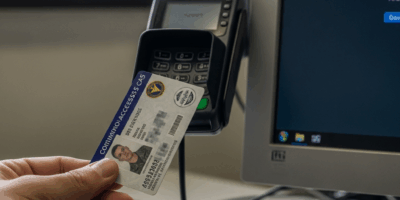
Safari uses Apple’s native smart-card framework. Insert the CAC, open the official CAC-enabled site directly and choose the correct authentication certificate if prompted. Enter the PIN only in the system or site authentication prompt you expected.
If Safari offers the CAC certificate, the reader, card and native token support are functioning. A failure in another browser or application then points to that application’s compatibility or configuration.
3. Install only official DoD trust material
Use the DoD Cyber Exchange’s current PKI/PKE material. Do not download DoD certificate bundles from forums, shared drives or unofficial setup sites.
Import only the CA certificates required by the official instructions. Do not set every certificate to “Always Trust.” Trust overrides can hide a broken or incorrect chain and weaken validation. If the Mac is managed, your organization may distribute the trust configuration through device management.
4. Understand local-account pairing
When a PIV card is inserted, macOS can offer to pair it with a local account. Apple explains that pairing enables local account login with the card and requires administrator approval. Declining pairing does not prevent using the card for supported websites.
Do not enable smart-card-only login casually. It changes how the Mac authenticates users and should be configured by an administrator with a recovery plan.
5. Chrome and other applications
Apple documents native Safari support and third-party support through CryptoTokenKit. Do not enable experimental Chrome flags or install random extensions to force CAC access.
If Safari works but Chrome does not, verify whether the DoD application supports Chrome on macOS and whether your organization supplies a browser policy or approved middleware. If an application requires a component-specific configuration, follow that component’s current instructions.
6. Firefox considerations
Firefox can maintain trust and security-device settings separately from the macOS system configuration. Follow the current Firefox and DoD Cyber Exchange instructions for the version you use. Do not assume that importing a certificate into Keychain automatically configures every Firefox profile.
Troubleshooting by symptom
The reader is absent from System Report
Use a direct connection, test a different port or adapter, and test the reader on another computer. Replace the reader only after isolating it from the Mac and adapter.
Safari never offers a certificate
Confirm that the Mac sees the reader, reinsert the CAC, restart Safari and test another official CAC-enabled service. If no service sees the card, contact your help desk or ID-card office to distinguish a card problem from Mac configuration.
The certificate is offered but the site rejects it
Select the correct authentication certificate, confirm the Mac’s date and time, verify the official DoD CA chain and check whether the service is operational. A server can reject a valid card when the account lacks authorization; successful certificate authentication does not guarantee application access.
The Mac asks to pair the card
Pair only if you intend to use the CAC for local Mac login and understand the administrative and recovery implications. You can decline and continue using supported web authentication.
Do you need ActivClient for Mac?
Not for every use case. Native macOS support can handle Safari web authentication and other CryptoTokenKit-compatible applications. Some organizations or legacy applications may still require approved middleware. Follow the application’s and your component’s requirements rather than installing ActivClient by default.


Leave a Reply