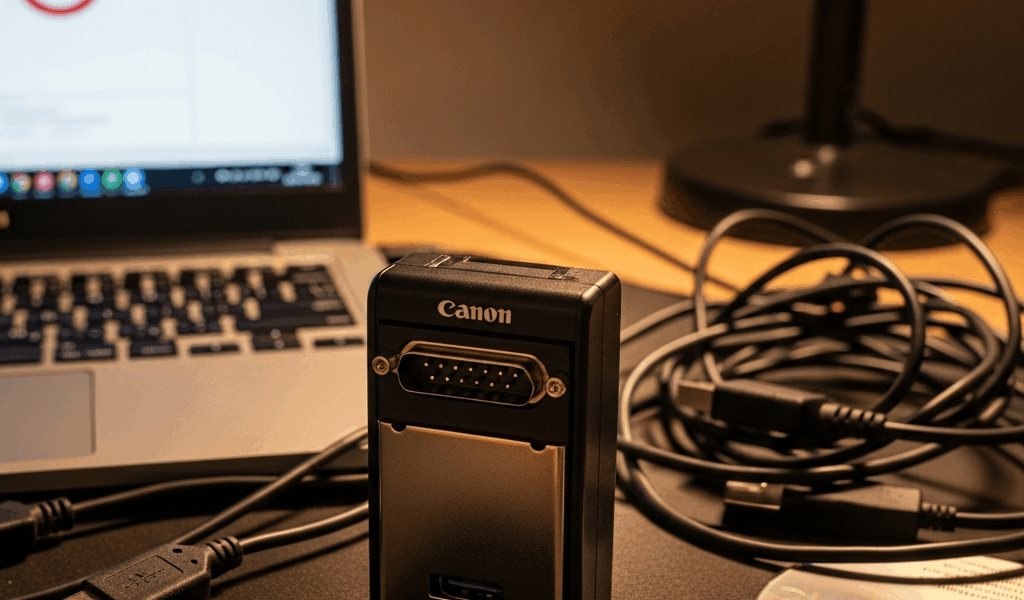
If Windows does not detect the reader at all, begin with the general CAC reader troubleshooting checklist before changing ActivClient.
Why ActivClient and Your Reader Stop Talking
CAC card troubleshooting has gotten complicated with all the conflicting advice flying around. Plug in the reader, Windows sees it, you install ActivClient — then nothing. Total silence. I’ve watched this exact sequence strand contractors and military personnel for hours when the actual fix took maybe three minutes.
Probably should have opened with this section, honestly, because it frames everything that follows. The conflict lives in the middleware layer. ActivClient needs your reader to register as a smart card device through Windows’ built-in Smart Card service. When that handshake fails, ActivClient can’t read the card — even though the hardware is physically present and powered on. Two culprits show up constantly: a driver conflict that emerges during or right after installation, and the Windows Smart Card service sitting in a stopped or disabled state. That’s it. That’s usually the whole problem.
So, without further ado, let’s dive in.
Check the Windows Smart Card Service First
Start here. Fastest win available.
Open the Windows Services console. Press Windows + R, type services.msc, hit Enter. Scroll to Smart Card — no suffix, just “Smart Card” in most Windows versions. Click it once.
Look at the Status column. Running means move on. Stopped or blank means you just found your problem.
- Right-click Smart Card and select Properties
- Set Startup type to Automatic — plain Automatic, not “Automatic (Delayed Start)”
- Click Start under Service status
- Click Apply, then OK
If the service throws an error code instead of starting, write it down. Error 1058 usually means a dependency is missing — check that Plug and Play and Device Setup Manager are both running on Automatic. Error 5 is a permissions thing. Run Command Prompt as Administrator and try net start "Smart Card" manually.
Unplug the CAC reader. Wait 15 seconds — actually wait, don’t just yank and replug immediately. Plug it back in. Test ActivClient now before touching anything else.
Reinstall the CAC Reader Driver Cleanly
Smart card reader drivers have gotten messy with all the version fragmentation across hardware lines. If the Smart Card service was already running and restarting it changed nothing, the driver itself is almost certainly the problem.
ActivClient installation sometimes overwrites the existing reader driver with a version that doesn’t play well with your specific hardware. The SCR3310 v2.0 and HID Omnikey 3121 are particularly notorious for this. Reinstalling without fully pulling the old driver first leaves ghost entries in Device Manager — and those ghost entries confuse Windows and ActivClient both. Don’t make my mistake and skip the full removal.
- Unplug the CAC reader from the USB port
- Open Device Manager (Windows + X, select Device Manager)
- Expand Smart Card Readers
- Right-click your reader — something like “SCR3310 v2.0” or “HID Omnikey 3121”
- Select Uninstall device
- Check the box labeled Delete the driver software for this device
- Click Uninstall
Wait 30 seconds. Open Device Manager again. You should see Other devices or Universal Serial Bus controllers with a yellow exclamation mark — that’s the reader sitting in an undefined state. Right-click it and delete it too.
Now plug the reader back in. Windows will attempt a generic driver install automatically. Let it finish completely. Then go get the official driver from your manufacturer’s website — not the version bundled with ActivClient. For HID readers, that’s hidglobal.com. For SCM Microsystems hardware, it’s scm-microsystems.com. Download the latest certified driver for your exact model and Windows version, 32-bit or 64-bit.
Install the manufacturer driver. Restart your machine. This step matters more than it sounds like it should.
Repair or Reinstall ActivClient the Right Way
Frustrated by driver conflicts and version mismatches between ActivClient 7.x and readers manufactured before 2016, I eventually learned the correct order of operations the hard way. Remove ActivClient first. Then the reader driver. Then reinstall both. Reversing that sequence leaves middleware fragments that shadow the fresh installation — and you’ll spend another hour wondering why nothing changed.
- Go to Settings → Apps → Apps & features
- Search “ActivClient”
- Click it, select Uninstall
- Try Repair first if you’re uncertain — it clears cached files and resets configurations without a full wipe
- If Repair doesn’t resolve it, uninstall completely, restart, then remove the reader driver through Device Manager using the steps above
- Restart again before installing anything new
Download ActivClient from the official DoD source. Version matters here. ActivClient 7.3 is current as of late 2024, but some military networks lock users to 7.1 or 7.2 for compliance reasons. Check with your IT help desk before downloading — installing the wrong version on a locked network just creates a new problem.
Install ActivClient. Restart. Plug in the reader. Open ActivClient and test the card read before celebrating.
Still Not Working — Three More Things to Try
Switch USB ports. Not a hub — a direct port on the machine itself, preferably on the back panel. CAC readers draw real power, and USB hubs frequently can’t supply enough current consistently. I’m apparently sensitive to this particular issue and back-panel ports work for me while front-panel hub connections never do. Different port, same computer, completely different result.
Verify DoD root certificates. ActivClient needs the DoD root certificates in your certificate store to validate the card. Missing certificates mean the card gets recognized but authentication fails silently — no useful error, just nothing happening. Open certmgr.msc, navigate to Trusted Root Certification Authorities → Certificates, and look for entries labeled “DoD Root CA” or “Department of Defense.” See nothing DoD-related? Your certificate store was wiped, most likely during a major Windows update. Reinstall the DoD certificate bundle from your agency’s self-service portal or request it directly from your help desk.
Run ActivClient Diagnostics. Some versions include a built-in diagnostic tool. Check your Start menu for “ActivClient Diagnostics” or look inside C:Program FilesActivIdentityActivClient for a file called Diagnostics.exe. Run it. It scans service status, driver installation, certificate chain validity, and reader detection — and reports back with actual specifics instead of making you guess.
If all three of those steps come back clean and the reader still won’t cooperate, escalate to your IT help desk with the specific error message or the diagnostic output in hand. At that point this isn’t a local configuration issue anymore. Your machine either has a hardware defect, a network policy blocking smart card services, or a Windows installation problem that requires domain-level intervention — none of which you’re fixing from Services console.



Leave a Reply