CAC Authentication on the DoD Portal Has Gotten Complicated With All the Conflicting Advice Flying Around
As someone who spent three years troubleshooting CAC issues for a unit with 200+ personnel, I learned everything there is to know about why the DoD portal refuses to cooperate. Today, I will share it all with you.
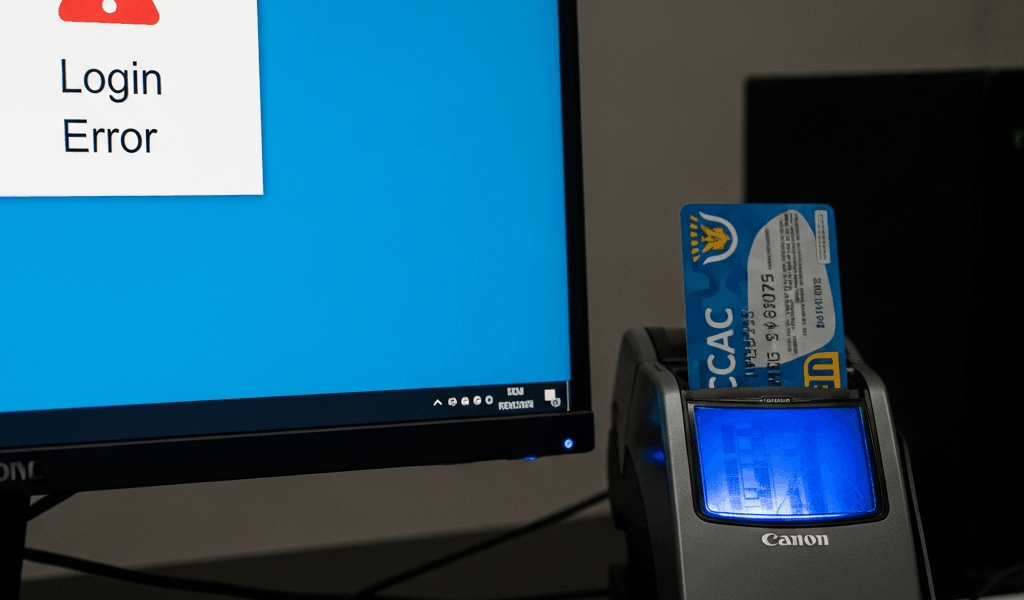
Here’s the scenario: card works, reader works, portal throws an authentication error anyway. I’ve sat at that exact desk — CAC inserted, browser open, login screen doing absolutely nothing. Everything looks right. Nothing is right. That gap between “looks fine” and “completely broken” is where most people lose an hour of their day.
The hardware isn’t your problem. Almost never is. What’s actually broken lives in the software layer — the invisible handshake happening between your machine and the portal’s authentication system. Missing DoD root certificates. Middleware that silently died in the background. A browser stubbornly using stale cached credentials instead of asking for a fresh selection. None of these announce themselves. The login screen just sits there.
That’s what makes CAC portal troubleshooting so maddening — it’s a portal-layer failure, not a hardware failure. The reader does its job. The drivers are installed. But the DoD self-service portal can’t see your credentials because something snapped in the authentication chain between your computer and their servers.
So, without further ado, let’s dive in. I’m walking you through this in the order that actually saves time — not the order an IT textbook would use, but the order that gets you logged in fastest.
Why the Portal Won’t Recognize Your CAC
Three root causes account for probably 90 percent of DoD portal authentication failures when the hardware is working fine.
First: missing or outdated DoD root certificates. Your certificate chain can’t be validated if the trusted root certificates aren’t installed on your machine. Personal computers are especially prone to this — the certificate bundle rarely auto-updates outside of managed government environments.
Second: middleware that crashed or never started. ActivClient or OpenSC should be running silently in the background at all times. When they’re not, your browser has no path to the card. Windows won’t tell you the process failed. It just won’t exist.
Third: cached certificate data in your browser. Chrome and Edge both hold onto old cert selections. You insert the card, the portal pings for authentication, the browser shows nothing — because it’s pulling stale cached data instead of prompting you for a fresh selection. This one fools people constantly.
The portal gives you no useful error message for any of these. Silent failure, every time. Walk through them in sequence.
Step 1 — Check Your Middleware Is Actually Running
Before touching anything else, verify the middleware service is running right now. Not installed. Running. There’s a difference — and it matters.
ActivClient and OpenSC are the two options the DoD supports. Most government machines ship with ActivClient. If you configured your own setup, you might have OpenSC instead.
On Windows
Glance at your system tray — bottom right of the taskbar. ActivClient running means a small red and blue card icon sitting there, visible. No icon means the middleware either crashed or never started. Windows won’t volunteer that information.
Open Task Manager with Ctrl+Shift+Esc. Hit the Services tab. Scan for “ActivClient” or “ActivIdentity.” Status says “Running” — you’re fine. Says “Stopped,” or it’s just not there at all — right-click, select “Start the service.”
Quick trick worth trying first: pull the CAC out of the reader, wait a full 10 seconds, reinsert it. Sometimes that jars the middleware awake if it’s hung mid-load. Try the portal immediately after. If it logs you in, you’re done — close this tab.
On Mac
Open System Preferences, go to Security & Privacy, then the General tab. ActivClient should appear in the “Allow applications downloaded from” section. Open Activity Monitor — it’s under Applications > Utilities — and search for “ActivClient” or “ActivIdentity.” Not running means you’ll need to launch it manually or dig into ActivClient preferences to toggle auto-start on login.
Mac gives you no system tray icon to glance at. Activity Monitor is your only real check. Honestly, this trips people up more on Mac than Windows.
If Middleware Isn’t Running
Reinstall it. Go back to your original installation source — probably a USB drive from your IT department or a specific government software repository — and run the installer again. Select “Repair” if that option appears. Restart the machine after. The service should spin up automatically on boot.
Still nothing after a restart? Call your Help Desk. Middleware that refuses to start usually means file corruption or a permissions problem — the kind of thing a standard reinstall can’t fix. Don’t make my mistake of spending two hours on that one solo. That’s legitimately their territory.
Step 2 — Install or Refresh DoD Root Certificates
Frustrated by three consecutive failed logins on my personal laptop, I finally pulled the DISA certificate bundle and installed it manually — something I probably should have done six months earlier.
But what is a root certificate issue? In essence, it’s your computer lacking the trusted anchor it needs to validate your CAC’s certificate chain. But it’s much more than that — without it, the portal has no way to confirm your credentials are legitimate, even when everything else is working perfectly.
Navigate to the DISA PKI repository at https://public.cyber.mil/pki-pke/dod-pki-repository/. Download the “InstallRoot” utility or the full DoD certificate bundle — the file is usually named something like “DoD_CAs.zip.” The exact filename changes with version updates, so look for the most recent one.
Run InstallRoot. It’s a straightforward executable. Unpacks, installs, done — about 30 seconds total. On Windows, certificates land in the “Trusted Root Certification Authorities” store. You can verify manually by opening certmgr.msc and checking that store directly. You should see multiple DoD certificates listed there.
Why does this get skipped on personal computers? IT pushes these certificates automatically to government machines, so nobody outside that environment knows they’re missing them. The portal doesn’t say “missing certificate” — it just fails. I’m apparently predisposed to assuming it’s always a hardware problem first, and that assumption cost me about four hours across two separate incidents before I finally checked the cert store. Don’t make my mistake.
After installing, close your browser completely. Don’t just refresh the tab. Full close, full reopen.
Step 3 — Force the Browser to Prompt for Your Certificate
Browsers cache certificate selections. If your cert has been reissued, revoked, or you’re logging in from a new machine, that cached data is actively working against you. The browser won’t ask for a fresh selection — it just uses the old data, which fails silently.
Chrome
Open a new tab. Type chrome://settings/certificates directly into the address bar. Go to the “Your certificates” tab. Delete any DoD or CAC-related entries. Check the “Authorities” tab and confirm you see at least three or four DoD root certificates present — fewer than that and your Step 2 probably needs a revisit.
Then clear cache entirely. Settings > Privacy and security > Clear browsing data. Date range set to “All time.” Check “Cookies and other site data” and “Cached images and files.” Clear it.
Edge
Nearly identical process. Settings > Privacy, search, and services > Clear browsing data, “All time,” clear everything. Then go to edge://settings/certificates and review the certificate store the same way you would in Chrome.
Firefox
Firefox runs its own separate certificate system — it doesn’t pull from the Windows cert store the same way Chrome and Edge do. Go to Settings > Privacy & Security, scroll to the “Certificates” section, click “View Certificates.” Under “Your Certificates,” delete any cached DoD entries. Close Firefox entirely and reopen. Full close, not just a new window.
After clearing, try the portal again. Your browser should now prompt you to select a certificate directly from your card.
Still Not Working — Three Things to Try Before Calling the Help Desk
Probably should have opened with this section, honestly — but these only make sense after you’ve ruled out the three main causes above.
Different USB Port
Swap to a port you haven’t used for this reader before. Some ports develop power or bandwidth issues that only surface under specific conditions. Reader works in the new port — the original port has a hardware problem, full stop. Not your CAC, not your software configuration.
Second Browser Profile
Create a completely fresh browser profile. In Chrome: Settings > Manage other people > Add person. In Edge: Settings > Profiles > Add profile. Try the portal from that clean profile using the same CAC. Works immediately? Your primary profile’s cache or certificate settings are corrupted past what standard clearing can fix. The new profile works as a permanent workaround — I’m apparently the kind of person who just runs two profiles indefinitely rather than dealing with the root cause, and honestly it works fine.
Check the Portal URL and TLS Version
Some DoD portals require TLS 1.2 minimum — and older browser configurations sometimes have it disabled or deprioritized. Check your browser’s TLS settings, or just try the portal in a completely different browser. Works in Edge but not Chrome? TLS negotiation is almost certainly the issue. That’s a quick settings fix rather than anything structural.
After these three, it’s a Help Desk issue. Your card is fine. Your reader is fine. What’s broken is either at the authentication server level or requires remote access troubleshooting on their end. You’ve done every legitimate local fix there is — hand it off without guilt.



Leave a Reply