
How to Unlock a Locked CAC Card
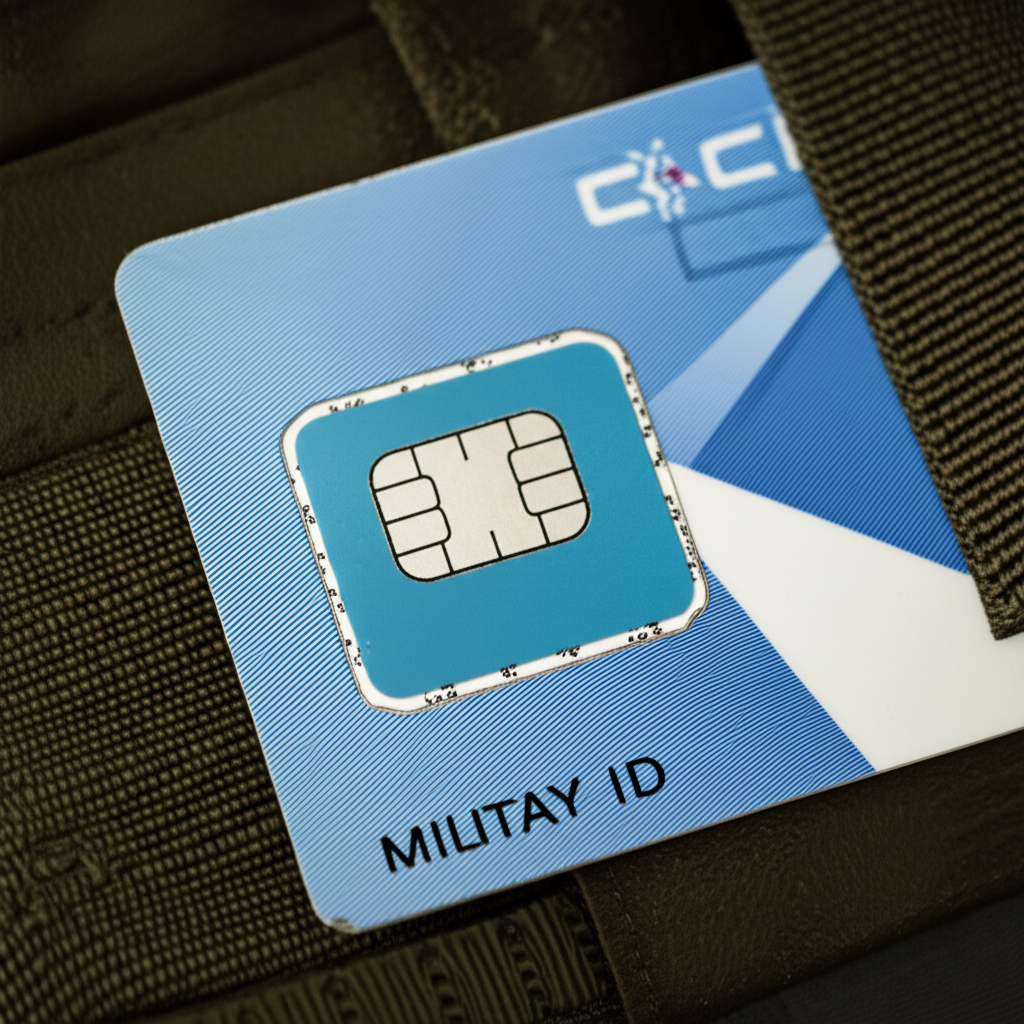 CAC (Common Access Card) is way more than just an ID badge. It’s your key to everything, from email to building access to classified networks. And when it locks up on you? Your entire workday grinds to a halt. I’ve seen it happen hundreds of times, and it’s always at the worst possible moment.
Why Your Card Locked in the First Place
Let’s start with the basics. A locked CAC almost always comes down to entering the wrong PIN too many times. Most systems lock you out after three to five bad attempts. It’s a security feature, not a bug, but that doesn’t make it any less frustrating when you’re standing at your desk with a cup of coffee and a locked card.
- When it’s locked, the card physically still works. The chip is fine, the contacts are fine.
- It’s specifically the PIN authentication that’s been disabled.
- You just need to reset or unblock the PIN to get back in business.
I had a Marine come to me once who swore he was typing the right PIN. Turns out his Caps Lock was on. Happens more than you’d think.
Option 1: SELF Service Online Tool
The Defense Manpower Data Center (DMDC) built a tool called SELF (Self-Help for Enterprise Logical File) Service specifically for this situation. If you’ve got access to a computer with a card reader, this is your fastest path back to a working card.
Here’s what you do:
- Stick the locked CAC into the card reader.
- Go to the SELF Service page on the DMDC website.
- Find the “Reset CAC PIN” option and click it.
- You’ll need to verify your identity through security questions or other personal info.
- Follow the prompts and pick a new PIN.
For most people, this is the quickest fix. Five minutes and you’re done. But I’ll be honest, it doesn’t always work. If your card has certain security policy restrictions, or if you’re deployed somewhere with limited connectivity, you might need a different approach.
Option 2: Go to a RAPIDS Station
RAPIDS (Real-Time Automated Personnel Identification System) stations are the gold standard for CAC card services. They’ve got all the tools and database access to fix pretty much any card issue you throw at them.
- Find your nearest RAPIDS station using the RAPIDS Site Locator on the DMDC website.
- Call ahead first. Trust me on this. Some stations are appointment-only, and wait times vary wildly depending on location.
- Bring your locked CAC and a valid photo ID.
- Tell the RAPIDS operator what happened. They won’t judge you.
- They’ll unlock the card and help you set a new PIN right there.
Most RAPIDS stations handle these pretty fast. I’ve seen it done in under 10 minutes when there’s no line. They can also pull up additional security info that the self-service tools can’t access, which is helpful if something weird is going on with your account.
Option 3: ActivClient Software
If you’ve got admin rights on your workstation, ActivClient might already be installed on your computer. It’s middleware that talks directly to the CAC chip, and it’s got a built-in PIN unblock feature.
- Make sure ActivClient is installed on the machine.
- Pop your locked CAC into the reader.
- Open ActivClient, go to Tools, then Manage Smart Card.
- Look for the “Unblock PIN” option.
- Follow the prompts to authenticate and set a new PIN.
ActivClient has a pretty clean interface, and if the software’s already on your system, this is probably the path of least resistance. I’ve walked dozens of people through this over the phone without any issues.
Option 4: PIV Unlock Tool
The Personal Identity Verification (PIV) Unlock Tool is another software solution, and it’s particularly handy if you set up security questions when your card was first issued. A lot of people skip that step. Don’t be one of those people.
- Install the PIV Unlock Tool if it isn’t already on your machine.
- Insert your locked card into the reader.
- Open the tool and go to Reset PIN.
- Answer your security questions. All of them, correctly.
- Pick a new PIN and confirm it.
This one’s almost fully automated, which is nice. But it only works if you actually configured those security questions during initial card setup. If you didn’t, the tool’s not going to help you much.
How to Stop This From Happening Again
Nobody wants to deal with a locked card twice. Here’s what I tell everyone who comes through my office after an unlock:
- Slow down when you type your PIN. Most lockouts happen because people rush and fat-finger it.
- Pick a PIN you’ll actually remember. Use a mnemonic trick if you need to. Just don’t write it on a sticky note. Please.
- Change your PIN occasionally so it stays fresh in your memory, especially after long leave.
- Set up those security questions in SELF Service right now while you’re thinking about it. Future you will thank present you.
It’s the simplest thing in the world, but getting people to take it seriously saves so many headaches down the road.
When You Need More Help
If none of the options above work, don’t sit there stewing about it. Every branch has IT support and help desks specifically for this kind of thing. Your local comm squadron, your unit’s IT section, whoever handles your network access. They deal with locked CACs daily and they’ve got tools you don’t have access to.
Remember, your CAC and its PIN are serious business from a security standpoint. Treat them like the keys to your house. Actually, treat them better than that. I’ve seen people lose building access, email access, even pay system access all because of a locked card they didn’t deal with promptly. Don’t let that be you.

About Jack Ashford
Jack Ashford is a DoD cybersecurity specialist with over 12 years supporting military IT infrastructure. He holds Security+ and CAC certifications and has worked as systems administrator for multiple DoD agencies. Jack specializes in PKI certificate management, CAC troubleshooting, and secure authentication systems, helping military personnel and contractors resolve access issues quickly.



Stay in the loop
Get the latest updates delivered to your inbox.