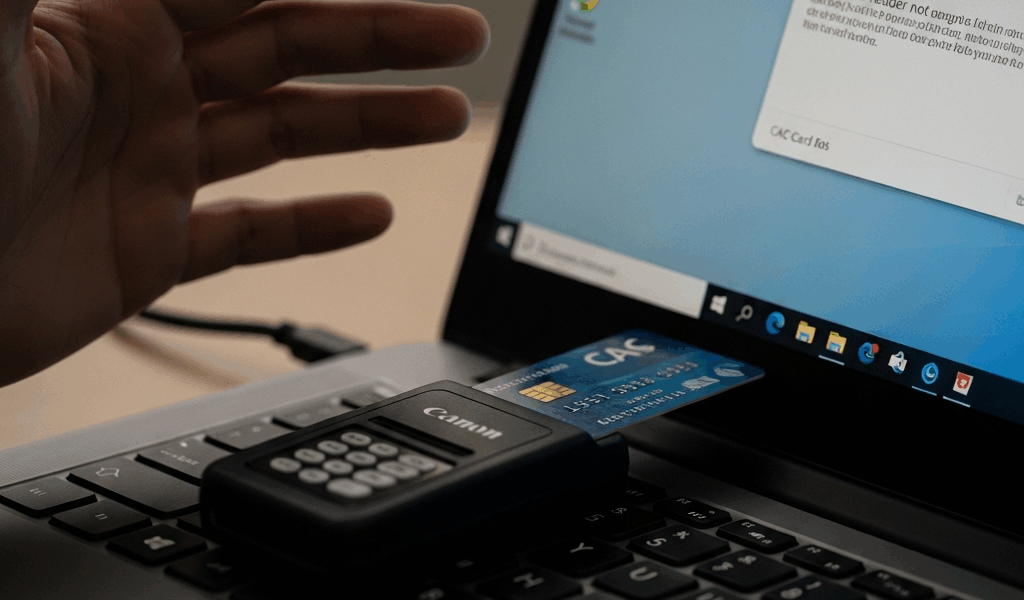
CAC Card Reader Not Working on Windows 11 — Here Is the Fix
CAC card reader trouble on Windows 11 has gotten complicated with all the conflicting advice flying around. As someone who works as a military IT support specialist managing roughly 400 users on base, I learned everything there is to know about these failures the hard way — one maddening ticket at a time. Conservative estimate: CAC reader issues make up about a third of my weekly workload. Some weeks it genuinely feels like half.
Here is the thing nobody tells you upfront. The physical card is almost never the problem. The reader itself is almost never the problem. It is almost always software — a stopped service, a corrupted driver, outdated middleware — and once you know the six or seven places things quietly break, you can usually sort it out in under fifteen minutes.
Work through these fixes in order. Do not skip ahead to the complicated stuff. The Smart Card service being stopped is embarrassingly common and embarrassingly easy to miss.
Fix 1 — Check Smart Card Service Is Running
Probably should have opened with this section, honestly. This single fix resolves maybe 40 percent of the tickets I get — takes ninety seconds — and yet people blow right past it hunting for something more dramatic.
Windows 11 has a habit of stopping the Smart Card service after updates. Once it stops, your system acts like the reader doesn’t exist. The reader gets power. The little light comes on. The card sits in the slot. And nothing happens — no certificate prompt, no ActivClient pop-up, nothing at all.
- Press Win + R to open the Run dialog.
- Type services.msc and press Enter.
- Scroll down to Smart Card.
- Right-click it and select Properties.
- Set Startup type to Automatic.
- Click Start if the service isn’t already running, then click OK.
- Now find Smart Card Device Enumeration Service in the same list.
- Repeat — set it to Automatic, start it.
Pull the CAC out and reinsert it once both services are running. Give it ten seconds. Nine times out of ten, that is where the problem was sitting the whole time. No prompt after ten seconds? Move on to Fix 2.
Fix 2 — Reinstall CAC Reader Drivers
Frustrated by a reader that Windows could see in Device Manager but flatly refused to communicate with, I once burned two hours checking certificates and middleware before realizing the driver itself was corrupted. That was a fun afternoon. The culprit turned out to be an SCM SCR3310 — a $25 USB unit, the kind half the base owns — with a driver conflict left behind by an Identiv reader someone had plugged in weeks earlier. Once I identified it, the actual fix took four minutes.
Don’t make my mistake. Check the driver first.
- Right-click the Start button and select Device Manager.
- Expand Smart card readers.
- Right-click your CAC reader and select Uninstall device.
- Check the box for Attempt to remove the driver software for this device if it appears.
- Click Uninstall.
- Physically unplug the reader from the USB port.
- Do a full restart — not sleep, not hibernate, an actual restart.
- Plug the reader back in after the desktop fully loads.
Windows 11 should detect and reinstall a generic driver for most USB smart card readers automatically. Insert your CAC and test. If you’re running an Identiv or SCM reader and Windows grabs the wrong driver, go directly to the manufacturer’s site for your specific model. The Identiv uTrust 3700F, for instance, has its own driver package that the generic install regularly misses.
Yellow warning triangle on the reader in Device Manager even after the reinstall? That is almost certainly a driver signing issue — which is exactly what Fix 3 addresses.
Fix 3 — Disable Core Isolation Memory Integrity
This one catches people off guard. Windows 11 ships with Core Isolation and Memory Integrity switched on by default — generally solid security practice — but it actively breaks certain older CAC reader drivers that aren’t signed in a way Windows 11 actually respects.
But what is Memory Integrity doing here, exactly? In essence, it’s a feature that prevents unsigned or loosely signed drivers from loading into protected memory. But it’s much more than that when you’re dealing with government hardware — it becomes a silent blocker that produces no useful error message and leaves you staring at Device Manager wondering what went wrong.
The symptom is specific: Code 10 or Code 39 errors on the reader, even after a clean driver install. The driver simply will not load.
- Open Settings.
- Go to Privacy & security, then Windows Security.
- Open Device Security.
- Under Core isolation, click Core isolation details.
- Toggle Memory integrity to Off.
- Restart the computer.
Reinstall the CAC reader driver after the restart and test again. Turning off a security feature feels wrong — on a personal machine, that calculus is yours to make. On a government machine already sitting behind a CAC-authenticated network, most base IT security officers I’ve worked with consider this tradeoff acceptable. Check your local policy if you’re uncertain.
Fix 4 — Update or Reinstall ActivClient Middleware
The reader can work perfectly and authentication will still fail if the middleware is outdated or mismatched with your Windows 11 version. That’s what makes ActivClient so endearing to us DoD IT folks — it fails quietly and gives you almost nothing useful to work with.
ActivClient is the most common middleware in the DoD environment. It’s what translates between the smart card and the applications that need to verify your identity — without it, a fully functional reader is basically decorative. Version mismatches are the main issue. ActivClient 7.x works with Windows 11. Earlier versions do not. I have personally seen machines that were upgraded from Windows 10 to 11 still running ActivClient 6.2 months later. That combination fails. Full stop.
- Uninstall any existing version of ActivClient from Control Panel > Programs > Uninstall a program.
- Restart the computer.
- Download the current approved version from your branch’s software portal. Army users typically go through Army 365. Navy and Marine Corps users should check NMCI resources. Air Force and Space Force users can find it through the AF Portal. If you’re unsure where to look, militarycac.com maintains a regularly updated list of approved middleware downloads organized by branch.
- Install the new version and restart again.
Insert your CAC after reinstalling. ActivClient should detect the card and display your certificates within a few seconds. Still nothing? Open the ActivClient Agent in the system tray and pull up the diagnostic logs — they will usually point directly at whatever certificate or driver handshake is breaking down.
Fix 5 — Check Windows Update Conflicts
Windows Update breaks CAC readers. Regularly. It is well-documented across the Microsoft Q&A forums, it is aggravating every single time, and I have personally watched it happen dozens of times — a machine reading cards fine on Monday, completely dead to the reader on Tuesday morning after an overnight update pushed through.
Cumulative updates to the Windows kernel and updates touching USB driver stacks are the usual suspects. There is no single KB number to permanently avoid — Microsoft reshuffles these with every release cycle — but the pattern stays consistent.
- Open Settings > Windows Update > Update history.
- Check what installed in the past 48 to 72 hours. A cumulative update that landed right around when the reader stopped working is your primary suspect.
- Go to Settings > Windows Update > Update history > Uninstall updates.
- Find the update, right-click it, select Uninstall.
- Restart and test.
Once you confirm rolling back the update restored functionality, you have two real options. Pause Windows updates temporarily — up to 35 days on Windows 11 Home, longer on Pro and Enterprise — and wait for Microsoft to push a corrected version. Or report the conflict up your IT chain so the update can be blocked at the enterprise level before it rolls out to other machines on the network. I usually recommend pausing for at least a week after identifying this kind of conflict. Microsoft typically patches the breakage within a few releases once enough tickets come in.
When None of These Fixes Work
Test the reader on a second machine — borrow a colleague’s laptop, plug in the reader, insert the CAC, see what happens. Works immediately on the second machine? The problem is isolated to your Windows 11 configuration, and you probably need a clean driver install combined with a full ActivClient reinstall done in sequence. Fails on the second machine too? The reader itself may be done. The SCM SCR3310 runs about $22 to $28 at that price point — they do eventually fail, especially with heavy daily use.
Also check the card itself. A CAC that has been through the wash, spent time in a humid environment — a car glove box in summer, for instance — or simply hit the end of its chip lifespan will fail consistently regardless of what you do on the software side. Card more than three years old and reading intermittently across multiple readers? It is time to visit your nearest RAPIDS station for a replacement.
Work through these fixes in order, restart between each one, and the overwhelming majority of CAC reader failures on Windows 11 will be sorted before you ever need to dial the help desk.



Leave a Reply