
Whether you’re setting up a new computer, troubleshooting authentication issues, or trying to access your .mil email from home, this guide covers the practical reality of Outlook military email in 2026.
The Current State of DoD Email
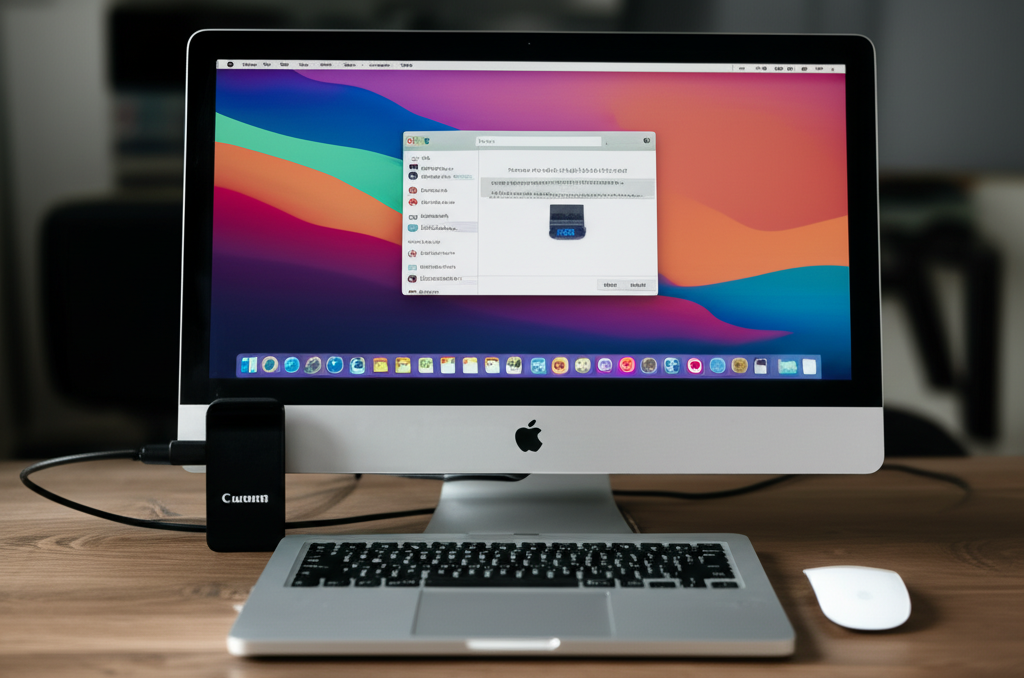
The DoD runs several email systems under the Defense Enterprise Email umbrella:
- DEE (Defense Enterprise Email): The primary system for most DoD users
- Army 365: Army-specific Microsoft 365 implementation
- Navy/Marine Corps Email: Transitioning to Flank Speed environment
- Air Force Email: Integrated with Air Force network infrastructure
All branches now use Microsoft Outlook as the primary client, either desktop or Outlook Web Access (OWA).
Your Three Options for Access
Option 1: Outlook Web Access (OWA)
Browser-based, works from any computer with a CAC reader.
Access URLs by branch:
- Army:
https://webmail.apps.mil - Navy/USMC:
https://webmail.cloud.navy.mil - Air Force:
https://owa.cloud.mail.mil - Generic DoD:
https://web.mail.mil
You’ll need: CAC reader, updated DoD certificates, compatible browser (Chrome, Edge, or properly configured Firefox)
Option 2: Desktop Outlook Application
Full functionality with offline access. Requires Microsoft 365 license (provided through DoD), CAC reader, proper profile configuration, and VPN connection if off-network.
Option 3: Mobile Access
DoD-approved mobile solutions vary by service. Options include Outlook Mobile with MDM enrollment, DoD-provided devices, or BYOD programs where authorized.
Step-by-Step Setup on Your Personal Computer
Here’s what actually works:
Step 1: Install DoD Certificates
Download and install the latest DoD root certificates from https://militarycac.com/dodcerts.htm or https://public.cyber.mil/pki-pke/.
Without current certificates, your browser and Outlook won’t trust DoD servers. This is the source of 80% of “certificate not trusted” errors.
Step 2: Configure Your CAC Reader
Install manufacturer drivers. Most modern readers are plug-and-play on Windows 10/11, but some require additional software. Test it with a simple operation before configuring email.
Step 3: Install ActivClient or DoD-Approved Middleware
While Windows has built-in smart card support, DoD systems often work better with dedicated middleware:
- ActivClient (most common, usually required)
- OpenSC (free alternative)
- 90Meter (specialized configurations)
Step 4: Configure Outlook
- Open Outlook and select “Add Account”
- Enter your .mil email address
- Select “Let me set up my account manually” if auto-discovery fails
- Choose “Exchange” as account type
- When prompted, select your CAC certificate (the EMAIL signing certificate, not authentication)
- Allow Outlook to complete setup
Common Problems and Fixes That Actually Work
“Certificate Not Trusted” Errors
The real cause: Missing or outdated DoD root certificates
The fix: Download and install the latest InstallRoot tool from cyber.mil. Run as administrator. Reboot afterward.
“Cannot Connect to Server”
Check these:
- VPN connection if working remotely
- Exchange server address for your organization
- Clear Outlook credentials from Windows Credential Manager
“PIN Blocked” or “CAC Locked”
Too many incorrect PIN attempts. Visit your local ID card office (RAPIDS site) to reset. Cannot be done remotely—there’s no workaround.
Outlook Keeps Asking for Password
- Close Outlook completely
- Open Credential Manager in Windows
- Remove all credentials containing “outlook,” “office,” or “microsoft”
- Restart Outlook and re-authenticate with CAC
Email Certificates Expired
CAC certificates have expiration dates. Renew at a RAPIDS site, or use self-service certificate renewal if your organization supports it.
Security Reminders
Military email carries real security obligations:
- Never forward .mil email to personal accounts
- Never access from untrusted networks without VPN
- Encrypt sensitive information using S/MIME (built into Outlook with CAC)
- Report suspicious emails through proper channels
- Never share your CAC or PIN
Tips for Reliable Access
At Home
- Use a dedicated CAC reader rather than keyboard-integrated readers
- Keep certificates updated monthly
- Maintain reliable VPN connection
- Consider a backup CAC reader
When Traveling
- OWA provides the most flexible access from hotel computers
- Bring a portable CAC reader
- Verify VPN access before departing
- Have helpdesk numbers saved offline
Getting Help
When problems persist:
- Service Desk: Contact your organization’s IT help desk first
- DISA Global Service Desk: 1-844-DIAL-DSN (1-844-342-5376)
- MilitaryCAC.com: Comprehensive troubleshooting guides and certificate downloads
- Your unit’s S6/J6: For organization-specific issues
Configuration requirements vary by service branch and organization. Always follow your command’s specific guidance for email setup.




Leave a Reply