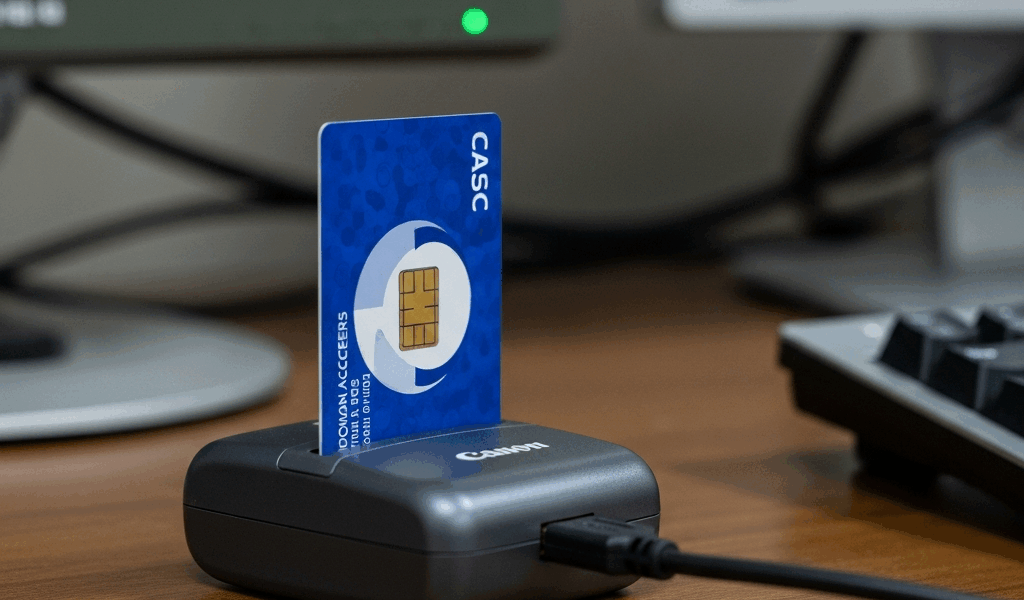
You just sat down at your desk, plugged in your CAC reader, inserted your card, and… nothing. The login screen doesn’t see it. Windows shows no certificate prompt. Or maybe it worked yesterday and today it just refuses to cooperate. You have a meeting in 10 minutes on the NIPR machine and your CAC is dead weight.
Before you call the help desk and wait 45 minutes on hold, try these 7 fixes. Most CAC problems are software or reader issues, not card failures — and most of them resolve in under 5 minutes.
1. Remove and Reinsert the Card
Pull the CAC out. Wait 10 seconds. Reinsert with the chip facing up and fully seated in the reader. This sounds too simple, but poor contact between the chip and the reader contacts is the most common cause of CAC failures. The gold chip contacts accumulate oxidation and debris over time — a quick removal and reinsertion often reestablishes the connection.
If the card feels loose in the reader, the reader’s internal contacts may be worn. Try a different reader before assuming the card is bad.
2. Try a Different USB Port
USB hubs, docking stations, and port replicators frequently cause CAC reader problems. The reader needs stable power and a direct data path — USB hubs introduce both power drop and latency that can prevent the card from authenticating.
Plug the reader directly into a USB port on the computer itself. Not the monitor’s USB port. Not the keyboard pass-through. Not the docking station. A port on the actual machine. If you’re on a laptop, try both sides — some laptops have USB controllers that handle smart cards better on specific ports.
3. Restart the Smart Card Service
Windows runs a background service called “Smart Card” that manages communication between the reader and the operating system. If this service hangs, your card won’t be detected even though the reader is functioning.
Open the Start menu, type “services.msc” and press Enter. Find “Smart Card” in the list. Right-click it and select “Restart.” Also look for “Smart Card Device Enumeration Service” and restart that one too. Wait 15 seconds after both services restart, then remove and reinsert your card.
If either service shows as “Stopped” instead of “Running,” right-click, select “Start,” and set the startup type to “Automatic” so it runs on boot.
4. Check Your Middleware (ActivClient)
ActivClient is the middleware that translates between your CAC and Windows. If it crashes, gets corrupted, or has a version mismatch with your Windows update, the card won’t work.
Open ActivClient from the system tray (look for the small icon near the clock). Click “My Certificates.” If no certificates appear when your card is inserted, the middleware isn’t reading the card. Try closing ActivClient completely and reopening it. If certificates still don’t appear, your middleware may need reinstallation — jump to the “Install CAC Middleware” fix below.
Also check for ActivClient updates. Older versions (7.x and below) have known compatibility issues with Windows 11 22H2 and later updates.
5. Clean the Card’s Chip Contacts
The gold chip on your CAC makes physical contact with the reader’s pins. Over time, both accumulate skin oils, oxidation, and pocket lint. If the electrical connection is weak, the reader may intermittently detect the card or fail entirely.
Use a clean, dry microfiber cloth to wipe the gold contacts on the card. Don’t use alcohol wipes or solvents on the card itself — they can damage the chip coating. For the reader, use a smart card cleaning card (available from IT supply) or gently blow compressed air into the card slot to clear debris.
6. Update Your DoD Certificates
Your browser and operating system maintain a list of trusted certificate authorities. If the DoD root certificates are expired or missing, your system won’t trust the certificates on your CAC — even if the card is physically working fine.
Go to militarycac.com (the unofficial but widely used DoD CAC resource site) and download the latest DoD certificate bundle. Install them following the site’s step-by-step guide. This is especially common after a fresh Windows install or a major Windows update that resets the certificate store.
7. Test with a Different Reader or Machine
If none of the above works, isolate the problem. Try your CAC in a different reader. If it works in the second reader, your original reader is failing — replace it. If it doesn’t work in any reader, the card itself may be damaged — the chip can fail from bending, heat exposure, or age.
Also try a known-working CAC in your reader. If someone else’s card works in your setup, the problem is your specific card. Head to the ID card office (RAPIDS/DEERS site) for a replacement.
Most CAC problems fall into three categories: dirty contacts (fixes 1 and 5), software service crashes (fixes 3 and 4), or USB connection issues (fix 2). Work through these before involving the help desk. If you’ve tried all 7 and the card still won’t authenticate, you’ve at least ruled out the common causes and can tell the tech exactly what you’ve already tested — which gets you to a solution faster than starting from scratch.




Leave a Reply