CAC Reader Not Working? Complete Troubleshooting Guide (2026)
Common Access Card (CAC) readers are essential tools for DoD personnel, contractors, and military families accessing government systems. When your CAC reader stops working, it can halt productivity and prevent access to critical resources. This comprehensive guide will help you diagnose and fix the most common CAC reader issues quickly.

Quick Fix Checklist
Before diving into detailed troubleshooting, try these quick fixes that solve 80% of CAC reader problems:
- Unplug the CAC reader and plug it back in
- Try a different USB port (preferably USB 3.0)
- Clean your CAC card chip with a microfiber cloth
- Restart your computer
- Check if your CAC card is properly inserted (chip facing up)
- Update DoD root certificates
Common CAC Reader Problems and Solutions
Problem 1: Computer Doesn’t Recognize the CAC Reader
Symptoms: No lights on the reader, Windows doesn’t detect new hardware, Device Manager shows unknown device.
Solution:
- Check USB Connection: Ensure the reader is firmly connected to a USB port. USB 3.0 ports (blue interior) provide better connectivity than USB 2.0.
- Install/Update Drivers:
- Visit ActivIdentity or your reader manufacturer’s website
- Download the latest drivers for your specific model
- Uninstall old drivers before installing new ones
- Check Device Manager:
- Press Windows + X and select Device Manager
- Look under “Smart Card Readers”
- If you see a yellow exclamation mark, right-click and select “Update Driver”
Problem 2: Reader Detected But Can’t Read CAC Card
Symptoms: Reader lights up, but websites or applications don’t detect your CAC card.
Solution:
- Clean the Card: Use a microfiber cloth to gently clean the gold chip on your CAC card. Dirt and oils from handling can interfere with connectivity.
- Check Card Orientation: The chip should face UP when inserting into the reader. The photo side should be visible.
- Try Another Card: If available, test with someone else’s CAC card to determine if the issue is with your specific card or the reader.
- Update DoD Root Certificates:
- Visit https://cyber.mil/pki-pke/tools-configuration-files/
- Download and install the latest DoD root certificates bundle
- Restart your computer after installation
Problem 3: “No Valid Certificates” Error
Symptoms: CAC reader works, card is detected, but websites display “No valid certificates found” or similar errors.
Solution:

- Install DoD Root Certificates: This is the #1 cause of this error. Download InstallRoot 5.6 or later from cyber.mil and run it.
- Update Browser: Ensure you’re using an approved browser (Internet Explorer, Edge, or Chrome with DoD certificates).
- Clear Browser Cache:
- In Chrome: Settings > Privacy and Security > Clear browsing data
- Clear cached images, files, and cookies
- Check Certificate Validity: Your CAC certificates may have expired. Contact your unit’s security office for a new card if your certificates are expired.
Problem 4: PIN Prompts Don’t Appear
Symptoms: You’re never prompted to enter your PIN when accessing CAC-protected resources.
Solution:
- Install ActivClient or Middleware:
- Download ActivClient from militarycac.com
- Install the appropriate version for your OS
- Restart your computer
- Check Smart Card Service:
- Press Windows + R, type “services.msc”
- Find “Smart Card” service
- Ensure it’s set to “Automatic” and is “Running”
- Enable Pop-ups: PIN prompts may be blocked by pop-up blockers. Add the website to your allowed list.
Problem 5: Works on Some Sites But Not Others
Symptoms: CAC authentication works on some .mil websites but fails on others.
Solution:
- Check Site Compatibility: Some sites only work with specific browsers (usually Internet Explorer or Edge).
- Add Sites to Trusted Zone:
- Internet Options > Security > Trusted sites
- Add *.mil to trusted sites
- Set security level to Medium-Low
- Enable TLS 1.2:
- Internet Options > Advanced
- Check “Use TLS 1.2”
- Uncheck older SSL/TLS versions
Platform-Specific Troubleshooting
Windows 10/11 Specific Issues
Windows updates sometimes break CAC reader functionality. If your reader stopped working after a Windows update:
- Reinstall DoD Certificates: Windows updates can remove these.
- Update ActivClient: Ensure you have the latest version compatible with Windows 11.
- Check Windows Defender: Sometimes security software blocks smart card services. Add exceptions for ActivClient.
- Run Windows Troubleshooter: Settings > Update & Security > Troubleshoot > Hardware and Devices
Mac Users
Mac compatibility with CAC readers requires additional configuration:
- Install CACKey: Download from cackey.rkeene.org (officially supported by DoD)
- Install DoD Certificates: Different process than Windows – follow militarycac.com Mac guide
- Use Safari or Firefox: Chrome on Mac has limited CAC support
- Check System Preferences > Security: Allow CACKey to make changes
Linux Users
Linux CAC configuration is more complex but fully supported:
- Install OpenSC: `sudo apt-get install opensc` (Ubuntu/Debian)
- Install PCSC-lite: `sudo apt-get install pcscd pcsc-tools`
- Import DoD Certificates: Use certutil to import certs
- Test Reader: Run `pcsc_scan` to verify reader detection
When to Replace Your CAC Reader
Sometimes the problem isn’t fixable – your reader may be failing. Replace your CAC reader if:
- It’s more than 3-4 years old (average lifespan)
- The USB connector is loose or damaged
- It works inconsistently even after troubleshooting
- Multiple cards fail in the reader but work elsewhere
- There’s visible physical damage
Best CAC Readers to Buy in 2026
If you need a replacement, these are the most reliable CAC readers currently approved for DoD use:
1. SCR3310v2.0 ($25-35)
- Most common DoD-issued reader
- Excellent compatibility
- Durable design
- Works with Windows, Mac, Linux
2. Identiv uTrust 3700 F ($30-40)
- Faster processing than older models
- USB-C and USB-A versions available
- Excellent Mac compatibility
- Compact design for travel
3. Identiv uTrust 4701 F ($35-45)
- Dual-interface (contact + contactless)
- Future-proof for new CAC cards
- Premium build quality
- USB-C native
Where to Buy: Amazon, Dell, CDW Government, or through your unit’s supply chain. Always verify the model number matches DoD-approved lists.
Preventing Future CAC Reader Problems
Follow these best practices to minimize CAC reader issues:
- Keep Software Updated: Regularly update ActivClient and DoD certificates
- Protect the Card: Store CAC in a protective sleeve when not in use
- Gentle Insertion: Don’t force the card into the reader
- Stable USB Connection: Use a rear USB port on desktops (more stable power)
- Regular Cleaning: Clean card chip monthly with microfiber cloth
- Backup Reader: Keep a spare reader for emergencies
- Documentation: Save troubleshooting steps that work for your specific setup
Resources and Support
If you’ve tried everything and your CAC reader still isn’t working, these resources can help:
- MilitaryCAC.com: Comprehensive guides for all platforms
- Cyber.mil: Official DoD PKI and certificate resources
- Unit IT Support: Contact your local helpdesk (they’ve seen it all)
- DSN 312-343-5900: Enterprise Service Desk for DoD issues
- Reddit r/military: Community support from other users
Conclusion
Most CAC reader problems can be fixed in under 10 minutes with the right troubleshooting steps. The most common fixes are updating DoD root certificates, reinstalling drivers, and cleaning your CAC card. If you’ve tried everything in this guide and your reader still doesn’t work, it’s likely time for a replacement – fortunately, quality CAC readers cost less than $40 and last for years.
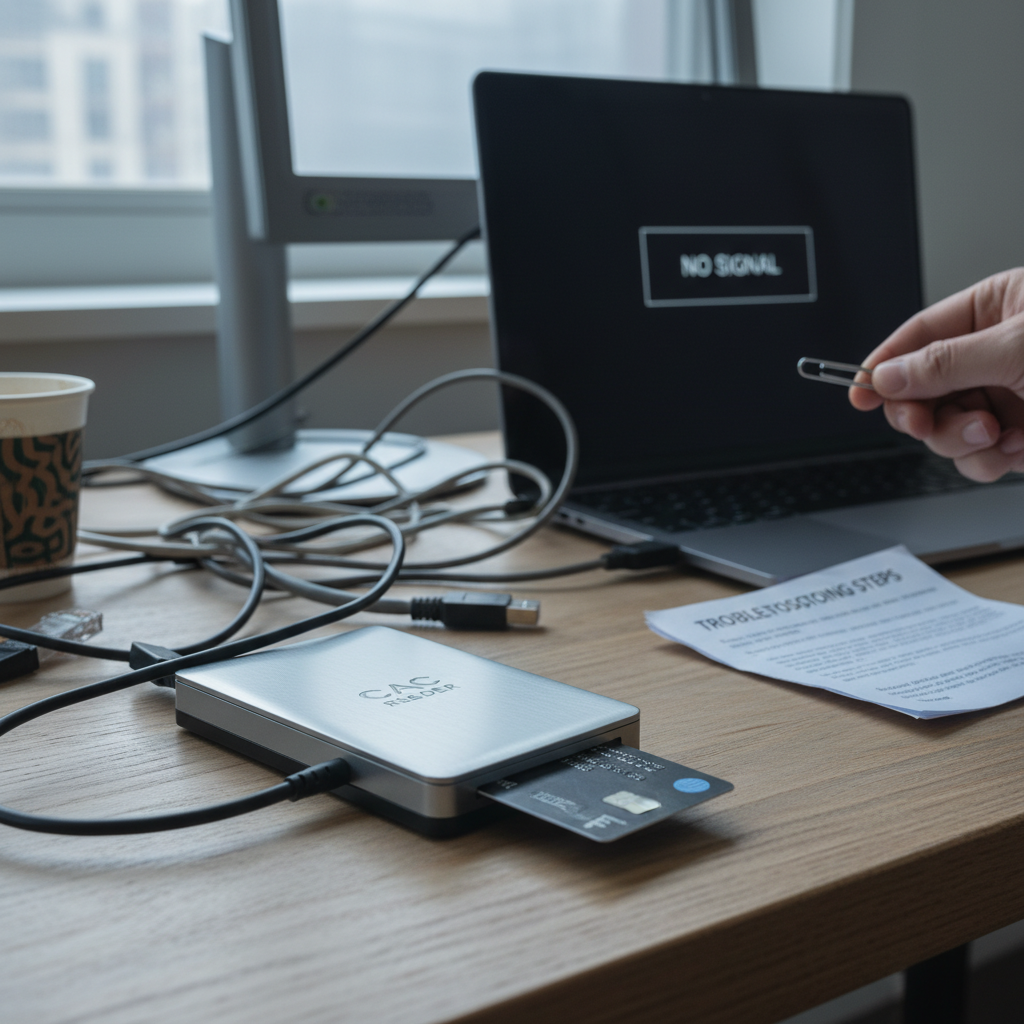
Remember to keep your software updated and maintain good card hygiene to prevent future issues. With a properly functioning CAC reader, you’ll have uninterrupted access to the DoD systems you need to complete your mission.




Leave a Reply