
Today, I will share it all with you.

I’ll be real: GlobalProtect is one of the most frustrating applications to get working with a CAC. It’s not that it can’t do it — it absolutely can — but the error messages are terrible, and when it fails, it gives you almost nothing to work with. “Connection failed.” Thanks, that’s super helpful. Let me walk you through the real troubleshooting process.
What’s Happening When You Connect

Understanding the authentication flow helps you figure out where things break. When you click Connect in GlobalProtect, here’s what happens under the hood:
- The client reaches out to your organization’s VPN gateway and starts the secure handshake
- The gateway says “show me your credentials” and requests a certificate from your CAC
- Your CAC middleware pops up a PIN prompt so it can unlock the certificate
- The unlocked certificate gets sent to the gateway for verification against the DoD certificate chain
- If everything checks out, the encrypted tunnel gets established and you’re in
So you have to systematically work through each one.
I can’t tell you how many tickets I’ve closed because the answer was something on this list:
- Is your CAC still valid? Flip it over and check the expiration date printed on the card. Expired card = nothing works.
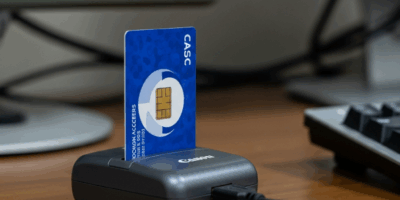
- Is the reader actually connected? Look for the LED light on the reader. Card should be fully seated — push it in until you feel the click.
- Can Windows see your certificates? Open
certmgr.msc and check under Personal > Certificates. If nothing’s there, GlobalProtect can’t authenticate because there’s nothing to authenticate with.
- Is your middleware running? Look for ActivClient (or whatever CAC middleware your org uses) in the system tray. If it’s not there, start it.
- Does your internet actually work? Open a regular website first. If you can’t reach Google, you can’t reach a VPN gateway either.
certmgr.msc and check under Personal > Certificates. If nothing’s there, GlobalProtect can’t authenticate because there’s nothing to authenticate with.If any of those are failing, fix them first. Don’t skip ahead — GlobalProtect literally cannot work if the foundation isn’t there.
Problem: “No Certificate Found” or Empty Certificate List
You click Connect and either get told there’s no valid certificate, or the certificate selection box pops up completely empty. This is the single most common issue I deal with.
What’s Going Wrong
- Card isn’t fully inserted or the reader has lost its USB connection
- ActivClient or your middleware crashed or isn’t running
- DoD root certificates aren’t installed, so Windows doesn’t trust your CAC certs
- The certificate chain from your CAC to the DoD root is broken
How to Fix It
First, power cycle the reader:
- Pull your CAC out
- Unplug the reader from USB entirely
- Count to ten — I’m serious, give it a full ten seconds
- Plug the reader back in and wait for the Windows USB detection sound
- Slide your CAC back in
Then restart the Smart Card service:
- Windows + R, type
services.msc, hit Enter - Find “Smart Card” in the list
- Right-click, Restart
- Do the same for “Smart Card Device Enumeration Service” if you see it
Finally, update your DoD certificates:
- Download InstallRoot from MilitaryCAC.com
- Right-click it, Run as Administrator — this part is critical
- Click “Install Certificates” and let it finish
- Reboot your computer. Not just restart GlobalProtect — full reboot.
Problem: PIN Prompt Never Shows Up
GlobalProtect starts connecting, the spinner spins, but you never get asked for your PIN. Eventually it times out. This one drove me crazy the first few times I encountered it.
What’s Going Wrong
- The PIN dialog is actually open — it’s just hiding behind other windows. I’ve seen this happen with dual monitors more times than I can count.
- ActivClient isn’t catching the PIN request from GlobalProtect
- Windows Credential Manager has stale cached credentials that are being used (and failing) instead of prompting you
How to Fix It
Check for hidden windows:
- Hit Alt+Tab and look for a PIN prompt or Windows Security dialog hiding in the stack
- If you have multiple monitors, check the other screen — the dialog loves to pop up on the wrong one
- Try Windows+D to minimize everything, then Alt+Tab back through the windows
Nuke the cached credentials:
- Control Panel > Credential Manager
- Under Windows Credentials, look for anything related to your VPN gateway address
- Delete every one of them
- Try connecting again — this time you should get a fresh prompt
Restart ActivClient:
- Right-click the ActivClient icon in the system tray and exit it completely
- Open it fresh from the Start menu
- Now try GlobalProtect again
Problem: Connection Drops During Authentication
You enter your PIN, it starts authenticating, and then — dead. Connection failed. This usually means something is interrupting the communication between your CAC reader and GlobalProtect at the exact worst moment.
What’s Going Wrong
- Your CAC reader is losing power mid-handshake (common with USB hubs)
- USB hub or dock is flaky
- Your network hiccupped during the authentication handshake
- A firewall is killing the connection
How to Fix It
Go direct with USB:
- Plug the reader directly into your laptop or desktop, not through a hub, dock, or keyboard
- On desktops, use the rear USB ports — they get power directly from the motherboard
- Remove any USB extension cables during VPN connection
Stop Windows from power-managing your USB:
- Open Device Manager
- Expand “Universal Serial Bus controllers”
- Right-click each USB Root Hub, go to Properties
- Under the Power Management tab, uncheck “Allow the computer to turn off this device to save power”
This one fix has solved probably 30% of the intermittent CAC reader disconnection issues I’ve seen. Windows aggressively power-manages USB ports, and when it briefly turns off the port your reader is on during an authentication handshake… boom, connection failed.
Firewall interference:
- Temporarily disable any third-party antivirus or firewall software
- Try connecting
- If it works, add GlobalProtect to your firewall’s allow list and re-enable it
Problem: “Authentication Failed” After Entering PIN
You type your PIN, you know it’s correct, and GlobalProtect flat-out rejects you. This one is especially maddening because you did everything right on your end.
What’s Going Wrong
- Your CAC certificate has expired (different from the card expiration date)
- Your system clock is wrong — even being off by a few minutes can break certificate validation
- GlobalProtect is selecting the wrong certificate from your card
- The VPN gateway has a configuration issue on the server side
How to Fix It
Fix your system clock first — seriously:
- Right-click the clock in your taskbar, select “Adjust date/time”
- Enable “Set time automatically”
- Click “Sync now”
Certificate validation is extremely time-sensitive. If your computer thinks it’s tomorrow or yesterday, the math doesn’t work and the gateway rejects you.
Check certificate expiration:
- Windows + R, type
certmgr.msc - Go to Personal > Certificates
- Find your DoD certificates and look at the “Expiration Date” column
- If they’re expired, you need a certificate renewal at RAPIDS — no software fix for this one
Select the right certificate manually:
- When GlobalProtect shows the certificate picker, slow down and read the options
- Select the one issued by “DOD ID CA” — that’s the authentication cert
- Don’t select the EMAIL cert — it’s for signing and encrypting email, not VPN authentication
- Check “Remember this decision” if that option is available
Problem: “Portal Cannot Be Reached”
GlobalProtect can’t even find the VPN gateway. Authentication never starts because the client can’t talk to the server.
How to Fix It
Test basic connectivity:
- Open Command Prompt
- Try:
ping vpn.your-base.mil(use your actual gateway address) - If ping fails:
nslookup vpn.your-base.milto see if DNS can resolve the address
Try a different network:
- Some home routers block VPN traffic on specific ports
- Hotel and coffee shop WiFi often blocks VPN too
- Tether to your phone’s mobile hotspot as a test — if it works on cellular data, your local network is the problem
Flush your DNS cache:
- Open Command Prompt as Administrator
- Run:
ipconfig /flushdns - Try connecting again
GlobalProtect-Specific Tweaks
Check Your Version
Older GlobalProtect versions can have CAC compatibility bugs. Right-click the GP icon in the system tray, go to Settings or About, and compare your version to what your IT department recommends. If you’re behind, update it.
Clear the GlobalProtect Cache
- Close GlobalProtect completely — not just disconnect, but actually close the application
- Navigate to
C:\Users\[your username]\AppData\Local\Palo Alto Networks - Delete the GlobalProtect folder in there
- Restart GlobalProtect — it’ll rebuild everything from scratch
This forces a clean slate and has fixed some really stubborn connection issues for me.
When It’s a Server Problem, Not You
Sometimes — and this is important to recognize — the problem isn’t on your end at all:
- Gateway maintenance: VPN servers go down for scheduled maintenance, and they don’t always send out an email first
- Capacity limits: Monday mornings and the start of big exercises can overwhelm VPN infrastructure. Servers start rejecting connections when they hit their limit.
- CRL issues: The server can’t check the certificate revocation list, so it rejects everyone
- Config changes: Your IT team pushed a gateway update that broke something
If your coworkers are all having the same problem at the same time, it’s almost certainly a server-side issue. Call the help desk and confirm before you spend an hour tearing apart your local configuration.
Best Practices I Tell Everyone
- Insert your CAC before launching GlobalProtect: Let Windows fully detect and read the card before the VPN client starts asking for certificates
- Use the same USB port every time: Consistency helps Windows keep the right drivers loaded
- Connect to VPN before opening Outlook: Establish the tunnel first, then launch your DoD applications
- Keep your middleware current: Install ActivClient updates when they’re available
- Run InstallRoot periodically: DoD root certificates get updated, and stale certs cause failures
Quick Troubleshooting Checklist
Before you call the help desk, run through this list. It’ll either fix your problem or give you useful information to tell the tech when you do call:
- CAC inserted and reader LED is lit
- Certificates visible in certmgr.msc
- System clock is accurate (sync it)
- ActivClient is running in system tray
- DoD root certificates installed (run InstallRoot)
- Using direct USB connection — no hubs
- Can ping the VPN gateway
- Firewall isn’t blocking GlobalProtect
- No other VPN clients running simultaneously
Work through every item before escalating. Most GlobalProtect CAC issues come down to something on this list, and your help desk will appreciate that you checked.
When You’ve Tried Everything
If you’ve exhausted this entire guide and still can’t connect, here’s how to get effective help:
- Screenshot the exact error message — “it said something about certificates” isn’t helpful
- Write down what you’ve already tried — saves the tech from walking you through steps you’ve already done
- Contact your local help desk with specifics — they can check if the gateway is having issues
- If possible, try connecting from a completely different location and network
VPN problems are common enough that your IT team has almost certainly dealt with your exact scenario before. Give them the details and let them do their thing.
Last updated: December 2025. GlobalProtect versions and configurations vary by organization.

About John Bigley
John Bigley is a former DoD IT specialist with over 12 years of experience supporting CAC authentication systems and military network infrastructure. He specializes in troubleshooting smart card issues and helping service members navigate DoD technology requirements.



Leave a Reply