
DoD root certificates are the foundation of CAC authentication. Without them installed on your computer, your browser won’t trust DoD websites or your CAC certificates. Here’s how to download, install, and verify DoD root certificates on any system.
What Are DoD Root Certificates?
Digital certificates work like a chain of trust:
- Your CAC contains certificates issued by “DoD ID CA” or “DoD EMAIL CA”
- Those certificates are signed by intermediate DoD Certificate Authorities
- The intermediate CAs are signed by DoD Root Certificate Authorities
- Your computer must trust the root CAs for the entire chain to be valid
Think of it like a notary system—your browser only trusts your CAC because it can trace the signature back to a known authority.
Current DoD Root Certificates
As of 2025, you need these root certificates installed:
- DoD Root CA 2 – Legacy systems (being phased out)
- DoD Root CA 3 – Current primary root
- DoD Root CA 4 – ECDSA-based root
- DoD Root CA 5 – Current SHA-384 root
- DoD Root CA 6 – Newest root (2024+)
You also need intermediate certificates (DOD ID CA-XX, DOD EMAIL CA-XX, DOD SW CA-XX) that link your CAC to these roots.
Method 1: InstallRoot (Recommended)
The easiest method for Windows users:
- Go to MilitaryCAC.com/dodcerts.htm
- Download InstallRoot (currently version 5.6 or newer)
- Right-click the downloaded file and select “Run as Administrator”
- Click “Install Certificates”
- Wait for the installation to complete (may take 1-2 minutes)
- Restart your browser
InstallRoot handles all the complexity—it installs root certificates, intermediate certificates, and configures trust settings automatically.
Method 2: DISA PKI Bundle (Official Source)
For those who prefer the official DoD source:
- Visit public.cyber.mil/pki-pke/
- Download “PKI CA Certificate Bundles: PKCS#7 for DoD”
- Extract the zip file
- Double-click each .p7b file to open it
- Click “Install Certificate”
- Choose “Local Machine” (requires Administrator)
- Select “Place all certificates in the following store”
- Browse and select “Trusted Root Certification Authorities” for root CAs
- Select “Intermediate Certification Authorities” for intermediate CAs
This method requires more steps but uses certificates directly from DISA.
Method 3: Manual Installation
For individual certificate files (.cer or .crt):
- Double-click the certificate file
- Click “Install Certificate”
- Select “Local Machine” and click Next
- Choose “Place all certificates in the following store”
- Click Browse and select the appropriate store:
- “Trusted Root Certification Authorities” for root CAs
- “Intermediate Certification Authorities” for intermediate CAs
- Click Next, then Finish
Verifying Installation
Confirm certificates are installed correctly:
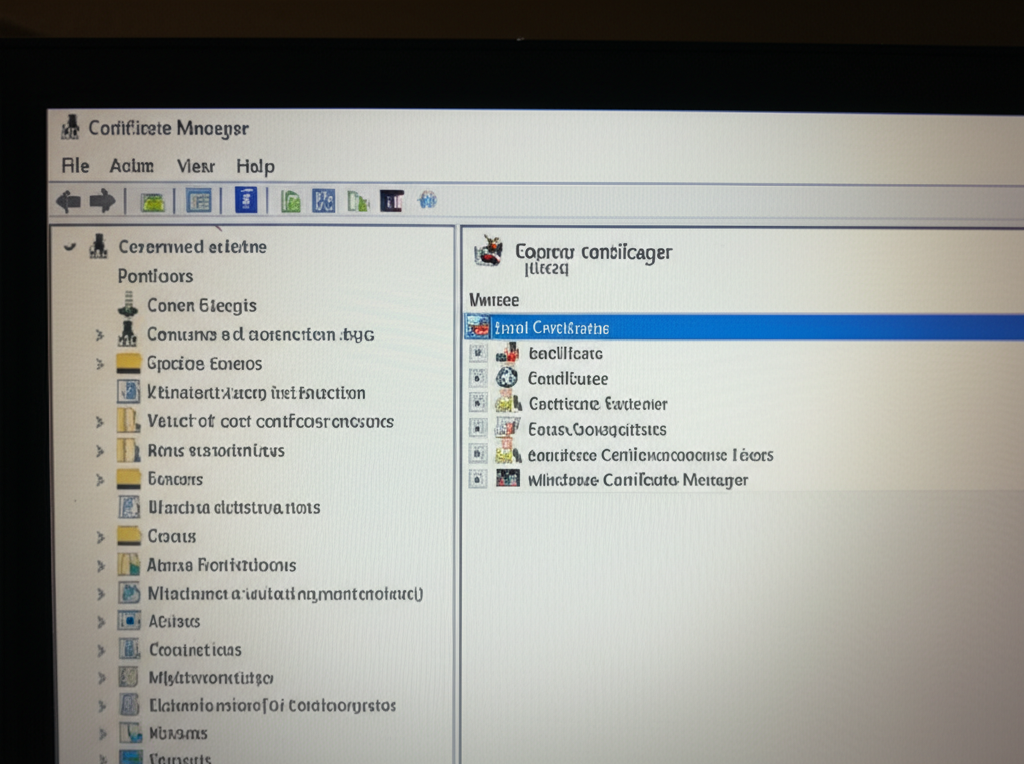
- Press Windows + R, type
certmgr.msc, press Enter - Expand “Trusted Root Certification Authorities” → “Certificates”
- Look for certificates starting with “DoD Root CA”
- You should see Root CA 2, 3, 4, 5, and possibly 6
Also check intermediate certificates:
- Expand “Intermediate Certification Authorities” → “Certificates”
- Look for “DOD ID CA-XX” and “DOD EMAIL CA-XX” entries
- There should be many of these (40+)
Firefox Installation
Firefox uses its own certificate store, separate from Windows:
- Open Firefox and navigate to
about:preferences#privacy - Scroll to “Certificates” and click “View Certificates”
- Select the “Authorities” tab
- Click “Import”
- Navigate to your extracted DoD certificates
- Select each root CA certificate and import it
- When prompted, check “Trust this CA to identify websites”
- Repeat for all DoD root certificates
Also import intermediate certificates to the Authorities tab for complete chain validation.
macOS Installation
On Mac:
- Download the DoD certificate bundle
- Double-click each certificate file to open Keychain Access
- Add certificates to the “System” keychain
- For each root certificate, double-click it in Keychain Access
- Expand “Trust” and set “When using this certificate” to “Always Trust”
- Enter your Mac password when prompted
Alternatively, use the security command line tool:
sudo security add-trusted-cert -d -r trustRoot -k /Library/Keychains/System.keychain DoD_Root_CA_3.cerLinux Installation
On Ubuntu/Debian:
sudo cp DoD_Root_CA_*.crt /usr/local/share/ca-certificates/
sudo update-ca-certificates
On Fedora/RHEL:
sudo cp DoD_Root_CA_*.crt /etc/pki/ca-trust/source/anchors/
sudo update-ca-trust
Firefox on Linux still requires separate manual import.
Updating Certificates
DoD periodically issues new certificates. Update when:
- You start seeing certificate errors on sites that worked before
- A new DoD Root CA is announced
- After major Windows updates
- At least once per year as routine maintenance
Run InstallRoot periodically (every 6-12 months) to ensure you have current certificates.
Troubleshooting Certificate Installation
“Access Denied” When Installing
- Right-click InstallRoot and select “Run as Administrator”
- On managed computers, you may need IT assistance
Certificates Don’t Appear After Installation
- Restart your browser completely
- Check both certmgr.msc stores (Root and Intermediate)
- Try running InstallRoot again
Still Getting “Untrusted” Errors
- Clear your browser’s SSL state and cache
- Ensure you installed to “Local Machine” not “Current User”
- Firefox users: import directly into Firefox’s certificate manager
Enterprise Environments
On DoD networks, certificates may be pushed via Group Policy. If you’re on a government computer:
- Certificates may already be installed—check certmgr.msc first
- You may not have permission to install additional certificates
- Contact your IT department if certificates are missing
Certificate Trust Hierarchy
DoD Root CA 3 (Root - must be trusted)
└── DoD ID CA-59 (Intermediate)
    └── Your CAC ID Certificate (End entity)

DoD Root CA 5 (Root - must be trusted)
└── DoD ID CA-70 (Intermediate)
    └── Your CAC ID Certificate (End entity)
Every certificate in the chain must be present and valid for authentication to work.
Quick Reference
Download locations:
- InstallRoot: militarycac.com/dodcerts.htm
- Official DISA bundle: public.cyber.mil/pki-pke/
Verification:
- Windows: certmgr.msc → Trusted Root Certification Authorities
- Firefox: about:preferences#privacy → View Certificates → Authorities
- Mac: Keychain Access → System → Certificates
Installing DoD root certificates is the first and most important step in CAC setup. Without them, nothing else works.
Last updated: December 2025

About Jack Ashford
Jack Ashford is a DoD cybersecurity specialist with over 12 years supporting military IT infrastructure. He holds Security+ and CAC certifications and has worked as systems administrator for multiple DoD agencies. Jack specializes in PKI certificate management, CAC troubleshooting, and secure authentication systems, helping military personnel and contractors resolve access issues quickly.




Leave a Reply