
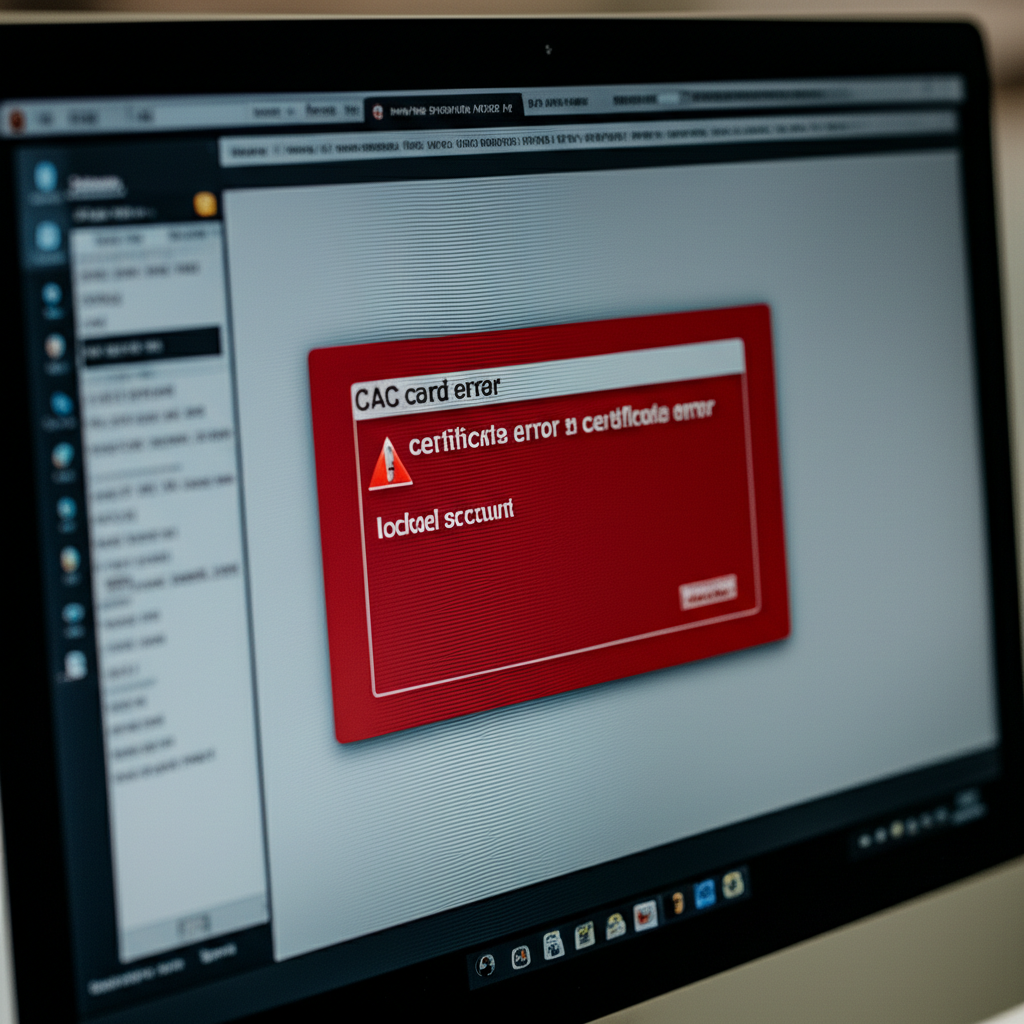
A locked CAC is one of the most stressful situations for military and DoD personnel—you can’t access email, systems, or sometimes even your building. The good news: most PIN lockouts can be resolved without visiting an ID card office. Here’s how to unlock your CAC and prevent future lockouts.
Why CAC Cards Get Locked
Your CAC locks after three consecutive incorrect PIN entries. This security feature prevents unauthorized access if your card is lost or stolen. Common causes:
- Misremembered PIN: Especially after leave or long weekends
- Wrong PIN for wrong card: If you have multiple smart cards
- Keyboard issues: Num Lock off, wrong keyboard layout
- System prompting unexpectedly: Entering password when it wants PIN
Check If Your CAC Is Actually Locked
Before assuming lockout, verify:
- Try your PIN one more time carefully (if you haven’t used all three attempts)
- Check if Caps Lock or Num Lock is affecting your input
- Ensure you’re entering your CAC PIN, not your computer password
- Confirm the card is fully inserted with the chip facing the correct direction
Your CAC middleware (ActivClient) may show remaining PIN attempts if you check its status.
Method 1: Self-Service PIN Reset (If Available)
Some DoD installations offer self-service kiosks or online PIN reset:
RAPIDS Self-Service
- Visit a RAPIDS self-service kiosk (often located near ID card offices)
- Insert your locked CAC
- Verify your identity using biometrics (fingerprint) or security questions
- Create a new PIN
Not all locations have these kiosks. Check with your installation’s ID card office.
ActivClient Self-Service (If Configured)
Some organizations configure ActivClient for self-service unlock:
- Open ActivClient Agent
- Look for “Unlock PIN” or “Reset PIN” option
- Follow the prompts to verify identity and create a new PIN
This option is only available if your organization has configured it.
Method 2: Visit Your ID Card Office (RAPIDS)
The guaranteed solution for a locked CAC:
- Locate your nearest RAPIDS/ID card office: idco.dmdc.osd.mil/idco/
- Bring a valid photo ID (driver’s license, passport)
- The technician will verify your identity in DEERS
- They’ll unlock your CAC and let you set a new PIN
- The process typically takes 10-15 minutes
Tip: Many ID card offices accept walk-ins for PIN resets. Call ahead to confirm hours and whether an appointment is needed.
Method 3: PUK Code (Personal Unblocking Key)
Some CACs have a PUK code that can unlock the PIN:
- The PUK was provided when your CAC was issued (often on a printed card)
- Open ActivClient or your CAC middleware
- Look for “Unblock PIN” option
- Enter the PUK code
- Create a new PIN
Warning: Entering the wrong PUK multiple times can permanently lock your CAC, requiring a full replacement. If you’re unsure of your PUK, visit the ID card office instead.
Emergency Situations
If you’re locked out and need immediate access:
For Building/Base Access
- Report to the Visitor Control Center
- They can verify your identity and issue temporary access
- Bring another form of ID (driver’s license)
For Computer/Email Access
- Contact your unit’s IT support or help desk
- They may have temporary workarounds for critical needs
- Some systems allow supervisor override for urgent situations
For After Hours/Weekends
- 24/7 ID card offices exist at some major installations
- Check with base operations or the command duty officer
- Plan to visit an ID card office first thing next business day
Preventing Future Lockouts
PIN Best Practices
- Choose a memorable PIN: Something you’ll remember but others won’t guess
- Don’t use obvious patterns: 1234, 0000, birth year, etc.
- Don’t reuse passwords: Your CAC PIN should be unique
- Practice your PIN: After setting a new one, log in several times to reinforce memory
Avoid Common Mistakes
- Verify Num Lock: Many PIN failures are caused by Num Lock being off
- Check the prompt: Make sure the system is asking for your CAC PIN, not your Windows password
- One card at a time: If you have multiple smart cards, keep them separate
- Don’t rush: Enter your PIN carefully rather than quickly
Keep Track of PIN Attempts
If you’re unsure of your PIN:
- Stop after one failed attempt
- Think carefully before your second attempt
- If you fail twice, go to the ID card office rather than risking lockout
CAC vs. PIV vs. Other Smart Cards
The lockout procedure applies specifically to DoD CAC cards. Other smart cards (PIV for federal civilians, contractor badges) may have different procedures. Check with your issuing organization.
After Your CAC Is Unlocked
Once unlocked, test your new PIN immediately:
- Log into your computer using the CAC
- Access a CAC-enabled website
- Send a test email (if applicable)
If problems persist, the issue may not be the PIN—check your CAC reader, middleware, or certificates.
Find Your Nearest ID Card Office
Use the official ID Card Office Locator:
- Website: idco.dmdc.osd.mil/idco/
- Search by zip code, base name, or state
- Check hours of operation before visiting
- Some offices require appointments; others accept walk-ins
Summary
A locked CAC is inconvenient but usually fixable within the same day:
- Try self-service options first (if available)
- Visit your RAPIDS/ID card office for guaranteed unlock
- Bring photo ID for verification
- Choose a memorable new PIN
- Test your unlocked CAC immediately
Prevention is better than cure—take your time entering your PIN and stop if you’re unsure before using all three attempts.
Last updated: December 2025

About Jack Ashford
Jack Ashford is a DoD cybersecurity specialist with over 12 years supporting military IT infrastructure. He holds Security+ and CAC certifications and has worked as systems administrator for multiple DoD agencies. Jack specializes in PKI certificate management, CAC troubleshooting, and secure authentication systems, helping military personnel and contractors resolve access issues quickly.



Leave a Reply